Softube Amp Room Bundle
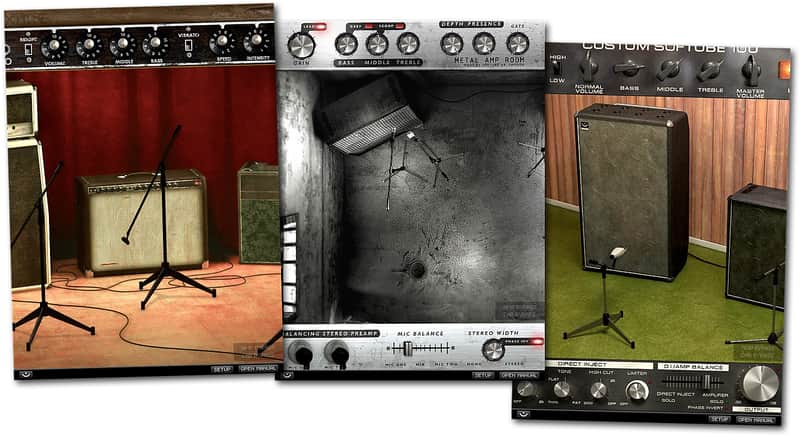
Softube Amp Room Bundle
New Price$199
Instant Download
This gear has sold
See similar gear from other Reverb sellers
Listed:over a month ago
Views:600
Saves:4
Offers:3

Chicago, IL, United States
Our users rate Reverb
Softube's renowned amp simulations.
What it is:
Softube's Vintage, Metal, and Bass Amp Room plugins.
How we use it:
Revitalize lackluster guitar and bass recordings.
Why it's cool:
Run drums, vox, and more through these bad boys to get some really interesting sonic effects. Softube purchases are strictly licensed for sale to customers in the USA only!
The complete collection of Softube's renowned amplifier simulations, including Vintage Amp Room, Metal Amp Room and Bass Amp Room.
Compatibility
Mac
Installation Instructions
What it is:
Softube's Vintage, Metal, and Bass Amp Room plugins.
How we use it:
Revitalize lackluster guitar and bass recordings.
Why it's cool:
Run drums, vox, and more through these bad boys to get some really interesting sonic effects. Softube purchases are strictly licensed for sale to customers in the USA only!
The complete collection of Softube's renowned amplifier simulations, including Vintage Amp Room, Metal Amp Room and Bass Amp Room.
Compatibility
Mac
- Intel processor
- OS X 10.5 or higher
- 1GB RAM
- 1024 x 768 minimum screen resolution
- Host software that supports Audio Units, AAX, RTAS, or VST/VST3 plug-in formats (fully compatible with 64-bit DAWs)
- Pro Tools requires version 7.0 or higher
- iLok USB key and the latest Pace Interlok drivers
- CPU that supports SSE2 instruction set including DAZ flag (most Intel and AMD processors since 2003 supports this)
- Windows XP (32-bit only), Vista, Windows 7
- 1GB RAM
- 1024 x 768 minimum screen resolution
- Host software that supports AAX, RTAS, or VST/VST3 plug-in formats (fully compatible with 64-bit DAWs)
- Pro Tools use requires version 7.0 or higher
- iLok USB key and the latest Pace Interlok drivers
Installation Instructions
Create a Softube/Gobbler account here: https://www.softube.com/index.php?id=myaccount
Download and install the Gobbler App
- Open the Gobbler App and sign in using your Softube/Gobbler account
- In the Gobbler App, click "Install All" to install all Softube products you have a license for - use the license key emailed to you by Reverb SYNC.
- If you have new licenses, keep the Gobbler App running when starting your DAW. The first time you run a plug-in, you will get a prompt for activation. Please follow the step by step instructions.
- We auto-detect your computer operating system, so just click the download button above.
- Find the downloaded plugin (it's in your computer's download folder, or wherever you've chosen to save it) and double click the installer.
- A plugin installer window will open. Simply go through the installation process.
- We will also send you an email with a link to re-download in case you need it.
- If Ableton Live is closed, open it and skip to #5.
- If Ableton Live is already open, go to Preferences.
- Go to Files & Folder.
- Click "Rescan plugins".
- Find the plugin in the Ableton plugins folder in the sidebar.
- Drag-and-drop the plugin onto your track at the bottom of the screen.
- Open Logic Pro X. Newly installed plugins should be detected automatically every time Logic is opened.
- If you've downloaded an effect or utility plugin, these can be used on an insert for any track in the mixer.
- Create a software instrument track if you downloaded a virtual instrument plugin.
- Under Default Patch, go to AU Instruments and choose the plugin you just installed.
- Open Pro Tools. Newly installed plugins should be detected automatically every time Pro Tools is opened.
- If you've downloaded an effect or utility plugin, these can be used on an insert for many types of tracks (Audio, Aux, Instrument, Master Fader...)
- If you’ve downloaded a software instrument, create a new Instrument track.
- Navigate to the Mixer and locate the newly created Instrument track.
- Select the desired instrument plugin by clicking on any of the Inserts on the Instrument track.
- Go to the Reverb SYNC Software and plugin Collection.
- Choose your desired plugin.
- Reverb will auto-detect your platform, so simply click the download button.
- Continue the installation process by following the prompt.
- Hover your mouse over the smart control button.
- Click Show Inspector icon.
- Click on plugins and choose your desired plugin.
General Instructions: