Sinevibes Eternal
Sinevibes Eternal
Price€31.87
Incl. VAT
Instant Download
This listing has ended
See similar gear from other Reverb sellers
Listed:over a month ago
Views:230
Saves:3
Offers:0

Chicago, IL, United States
Our users rate Reverb
Atypical, multi-directional, barber-pole flanger from Sinevibes.
What it is:
An intricate, barber-pole flanger with an enticing and intuitive interface.
How we use it:
Seamlessly craft flange from dizzying to wavy.
Why it's cool:
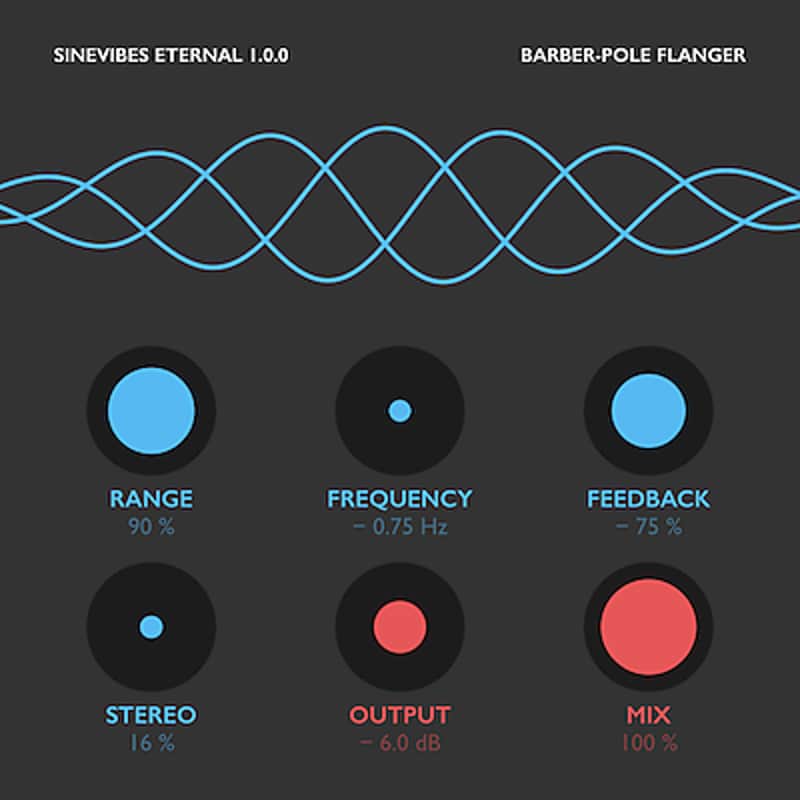
With carefully tuned parameters and musical sound, Eternal brings an ear-grabbing flanger effect to your production suite. Eternal by Sinevibes is a barber-pole flanger effect. Unlike a traditional flanger which typically has its tone repeatedly go up and down, this is a flanger that goes upwards or downwards in a seemingly endless fashion. To accomplish this unique “barber-pole” effect, Eternal uses an array of three stereo flangers and six bespoke, thoroughly calibrated low-frequency oscillators. And since these oscillators have a “through-zero” design, it allows Eternal to seamlessly go from downwards to upwards motion and back at your fancy. With two distinct flanger tones thanks to positive or negative feedback, this plugin puts a whole arsenal of unique airy, bubbly and even psychedelic effects in your hands.
Eternal has an intuitive user interface wholly built with color-coded graphics and subtle animations. Together with carefully tuned parameters, this highly musical effect also gives you an enjoyable and inspiring user experience.
Sound engine
Compatibility
Installation Instructions
General Instructions:
What's new?
Eternal 1.0.3
What it is:
An intricate, barber-pole flanger with an enticing and intuitive interface.
How we use it:
Seamlessly craft flange from dizzying to wavy.
Why it's cool:
With carefully tuned parameters and musical sound, Eternal brings an ear-grabbing flanger effect to your production suite. Eternal by Sinevibes is a barber-pole flanger effect. Unlike a traditional flanger which typically has its tone repeatedly go up and down, this is a flanger that goes upwards or downwards in a seemingly endless fashion. To accomplish this unique “barber-pole” effect, Eternal uses an array of three stereo flangers and six bespoke, thoroughly calibrated low-frequency oscillators. And since these oscillators have a “through-zero” design, it allows Eternal to seamlessly go from downwards to upwards motion and back at your fancy. With two distinct flanger tones thanks to positive or negative feedback, this plugin puts a whole arsenal of unique airy, bubbly and even psychedelic effects in your hands.
Eternal has an intuitive user interface wholly built with color-coded graphics and subtle animations. Together with carefully tuned parameters, this highly musical effect also gives you an enjoyable and inspiring user experience.
Sound engine
- Three stereo flangers with negative or positive feedback.
- Six through-zero oscillators for creating endless upwards or downwards “barber-pole” motion.
- Stereo modulation phase shift for variable stereo field widening.
- Color-coded controls with lightly animated transitions.
- Fully hardware-accelerated rendering with support for Retina screen resolution.
Compatibility
- Singularity works with Logic, GarageBand, Live, MainStage, ReNoise, Reaper, Studio One, Digital Performer, Tracktion and other software that supports Audio Unit effect plugins.
- It comes in 32/64 bit format for Intel Macs running OS X 10.6 or later, and supports Retina screen resolution.
Installation Instructions
General Instructions:
- We auto-detect your computer operating system, so just click the download button above.
- Find the downloaded plugin (it's in your computer's download folder, or wherever you've chosen to save it) and double click the installer.
- A plugin installer window will open. Simply go through the installation process.
- We will also send you an email with a link to re-download in case you need it.
- If Ableton Live is closed, open it and skip to #5.
- If Ableton Live is already open, go to Preferences.
- Go to Files & Folder.
- Click "Rescan plugins".
- Find the plugin in the Ableton plugins folder in the sidebar.
- Drag-and-drop the plugin onto your track at the bottom of the screen.
- Open Logic Pro X. Newly installed plugins should be detected automatically every time Logic is opened.
- If you've downloaded an effect or utility plugin, these can be used on an insert for any track in the mixer.
- Create a software instrument track if you downloaded a virtual instrument plugin.
- Under Default Patch, go to AU Instruments and choose the plugin you just installed.
- Go to the Reverb SYNC Software and plugin Collection.
- Choose your desired plugin.
- Reverb will auto-detect your platform, so simply click the download button.
- Continue the installation process by following the prompt.
- Hover your mouse over the smart control button.
- Click Show Inspector icon.
- Click on plugins and choose your desired plugin.
What's new?
Eternal 1.0.3
- Fixed continuous plugin parameters that were incorrectly specified as binary.
- Flanger buffer and feedback are now cleared when the host resets the plugin
- Enhancements in the parameter interface
- Minor improvements in user interface color scheme.