Ichrio Toda Synth1
PriceFREE
Incl. VAT
Instant Download
This listing has ended
See similar gear from other Reverb sellers
Listed:over a month ago
Views:9,204
Saves:76
Downloads:2,131

Chicago, IL, United States
Our users rate Reverb
A reimagined Red Synth in a versatile plugin.
What it is:
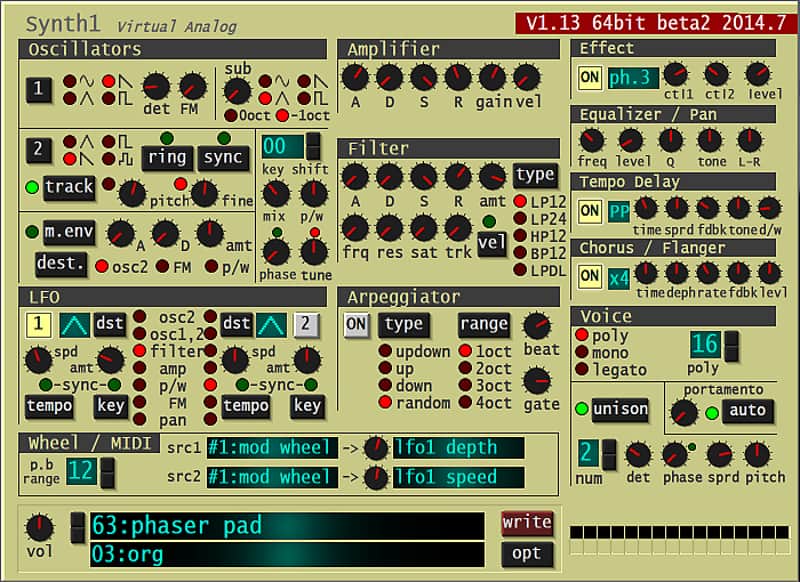
A software rendition of the Clavia Nord Lead 2 Red Synth.
How we use it:
Synth1 is incredibly versatile and covers most every synth need.
Why it's cool:
Synth1 brings the sound of a present-day favorite to your computer at no cost. Synth1 is a software synthesizer. Functionally it is modelled on the Clavia Nord Lead 2 Red Synth. Features: 2 Oscillators, FM modulation, ring modulation, sync, modulation envelope. 4 types of filters, distortion. 2 LFOs (synchronized with host). Arpeggiator (synchronized with host). Tempo delay (synchronized with host), stereo chorus/flanger. Legato mode, portamento. 16 notes polyphony. 128 presets. Thoroughly optimized for light CPU load using SSE instructions, etc. Automation.
Compatibility
General Instructions:
Installation Instructions
General Instructions:
What it is:
A software rendition of the Clavia Nord Lead 2 Red Synth.
How we use it:
Synth1 is incredibly versatile and covers most every synth need.
Why it's cool:
Synth1 brings the sound of a present-day favorite to your computer at no cost. Synth1 is a software synthesizer. Functionally it is modelled on the Clavia Nord Lead 2 Red Synth. Features: 2 Oscillators, FM modulation, ring modulation, sync, modulation envelope. 4 types of filters, distortion. 2 LFOs (synchronized with host). Arpeggiator (synchronized with host). Tempo delay (synchronized with host), stereo chorus/flanger. Legato mode, portamento. 16 notes polyphony. 128 presets. Thoroughly optimized for light CPU load using SSE instructions, etc. Automation.
Features:
- 2 Oscillators, FM modulation, ring modulation, sync, modulation envelope.
- 4 types of filters, distortion.
- 2 LFOs (synchronized with host).
- Arpeggiator (synchronized with host).
- Tempo delay (synchronized with host), stereo chorus/flanger.
- Legato mode, portamento.
- 16 notes polyphony.
- 128 presets.
- Thoroughly optimized for light CPU load using SSE instructions, etc.
- Automation.
Compatibility
General Instructions:
- We auto-detect your computer operating system, so just click the download button above.
- Find the downloaded plugin (it's in your computer's download folder, or wherever you've chosen to save it) and double click the installer.
- A plugin installer window will open. Simply go through the installation process.
- We will also send you an email with a link to re-download in case you need it.
- If Ableton Live is closed, open it and skip to #5.
- If Ableton Live is already open, go to Preferences.
- Go to Files & Folder.
- Click "Rescan plugins".
- Find the plugin in the Ableton plugins folder in the sidebar.
- Drag-and-drop the plugin onto your track at the bottom of the screen.
- Open Logic Pro X. Newly installed plugins should be detected automatically every time Logic is opened.
- If you've downloaded an effect or utility plugin, these can be used on an insert for any track in the mixer.
- Create a software instrument track if you downloaded a virtual instrument plugin.
- Under Default Patch, go to AU Instruments and choose the plugin you just installed.
- Go to the Reverb SYNC Software and plugin Collection.
- Choose your desired plugin.
- Reverb will auto-detect your platform, so simply click the download button.
- Continue the installation process by following the prompt.
- Hover your mouse over the smart control button.
- Click Show Inspector icon.
- Click on plugins and choose your desired plugin.
Installation Instructions
General Instructions:
- We auto-detect your computer operating system, so just click the download button above.
- Find the downloaded plugin (it's in your computer's download folder, or wherever you've chosen to save it) and double click the installer.
- A plugin installer window will open. Simply go through the installation process.
- We will also send you an email with a link to re-download in case you need it.
- If Ableton Live is closed, open it and skip to #5.
- If Ableton Live is already open, go to Preferences.
- Go to Files & Folder.
- Click "Rescan plugins".
- Find the plugin in the Ableton plugins folder in the sidebar.
- Drag-and-drop the plugin onto your track at the bottom of the screen.
- Open Logic Pro X. Newly installed plugins should be detected automatically every time Logic is opened.
- If you've downloaded an effect or utility plugin, these can be used on an insert for any track in the mixer.
- Create a software instrument track if you downloaded a virtual instrument plugin.
- Under Default Patch, go to AU Instruments and choose the plugin you just installed.
- Open Pro Tools. Newly installed plugins should be detected automatically every time Pro Tools is opened.
- If you've downloaded an effect or utility plugin, these can be used on an insert for many types of tracks (Audio, Aux, Instrument, Master Fader...)
- If you’ve downloaded a software instrument, create a new Instrument track.
- Navigate to the Mixer and locate the newly created Instrument track.
- Select the desired instrument plugin by clicking on any of the Inserts on the Instrument track.
- Go to the Reverb SYNC Software and plugin Collection.
- Choose your desired plugin.
- Reverb will auto-detect your platform, so simply click the download button.
- Continue the installation process by following the prompt.
- Hover your mouse over the smart control button.
- Click Show Inspector icon.
- Click on plugins and choose your desired plugin.
| Brand | |
|---|---|
| Model |
|
| Categories |
Product safety information may be available here.