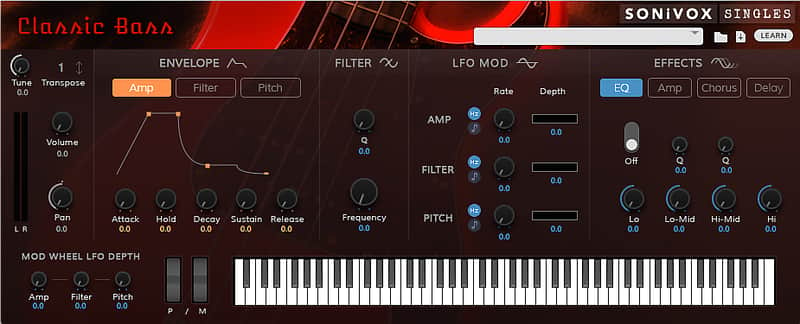
SONiVOX Classic Bass
This gear has sold
See similar gear from other Reverb sellers

What it is:
A thoroughly crafted sample library of the legendary P-Bass.
How we use it:
Blend the low end that shaped modern music to a mix.
Why it's cool:
Samples of both fingered and - the infamous - picking techniques allow you to dramatically shape your bass tone and the overall mood of your track.
The dean of American basses, the Fender Precision is a four-string workhorse chock full of thick, rich tone. Somehow, simply calling it fat doesn't do it justice.
Our Classic Bass DVI gives you this classic bass tone in two varieties- finger style (with nice, thick slaps on top) and picked, the better to cover all the musical bases.
Compatibility
Windows:
- Windows 7 - 10
- Minimum 2GB RAM, 4GB Recommended
- A VST 32/64 or AAX 32/64 compatible host application
Mac:
- OS X Version 10.8 - 10.11
- Minimum 2GB RAM, 4GB Recommended
- A VST 32/64, AU 64 or AAX 32/64 compatible host application
Installation Instructions
To install SONiVOX software and content:
-
Double-click the .exe (Windows) or .pkg (Mac OS X) installer file emailed to you by Reverb SYNC.
-
Follow the on-screen instructions to continue the installation.
-
Authorize your installation. See "Authorization" below to learn how to do this.
Important: Due to the quantity and quality of samples included in the software, allow some time for the installation to complete. This could take several minutes.
Authorization
To authorize your product:
- Either double-click the software Authorizer on your computer desktop or open the software on a MIDI track in your digital audio workstation (DAW).
- In the window that appears, enter the authorization code you received with your installation,
and then click Activate.
- Alternatively, click Try to start using a trial version of the software, or click Cancel to exit the authorization process.
- After clicking Activate, the next window will ask you for your authorization code. Enter the code you received with your purchase, and then click Next.
- The next window will ask for your e-mail address.
- If you do not have an iLok account, enter your e-mail address, and then click Continue.
- If you already have an iLok account, enter your e-mail address, check the "Register with my existing iLok.com account" box, and then click Continue.
- If you already have an iLok account, the next window will ask for your account information. Enter your iLok User ID and Password, and then click Next. Continue on to Step 6 below.
- If you do not have an iLok account, the next window will where you want to store your new iLok license. Click the Store button next to On my computer.
- The next window will confirm that your activation was successful. Click Continue to finish the authorization. You’re now ready to use your software— skip the following steps, and start making music! Select where you want to store your iLok license. Any available locations will appear in the panel in the window, including your computer or any physical/hardware iLoks registered with your iLok account (and are also connected to your computer).
- After you have selected your desired location, click Next. The next window will confirm that your activation was successful. Click Continue to finish the authorization. You’re now ready!
| Brand | |
|---|---|
| Model |
|
| Categories |
Product safety information may be available here.