McDSP 6034 Ultimate Multi-Band Native
This gear has sold
See similar gear from other Reverb sellers

Our users rate Reverb
What it is:
Flexible multi-band dynamics processing from MCDSP.
How we use it:
Perfectly seat a track in the mix.
Why it's cool:
The 6034 layout is extremely user friendly. Artist presets by the likes of Mike Dean, ROCAsound, and beyond are more than enough to get you inspired.
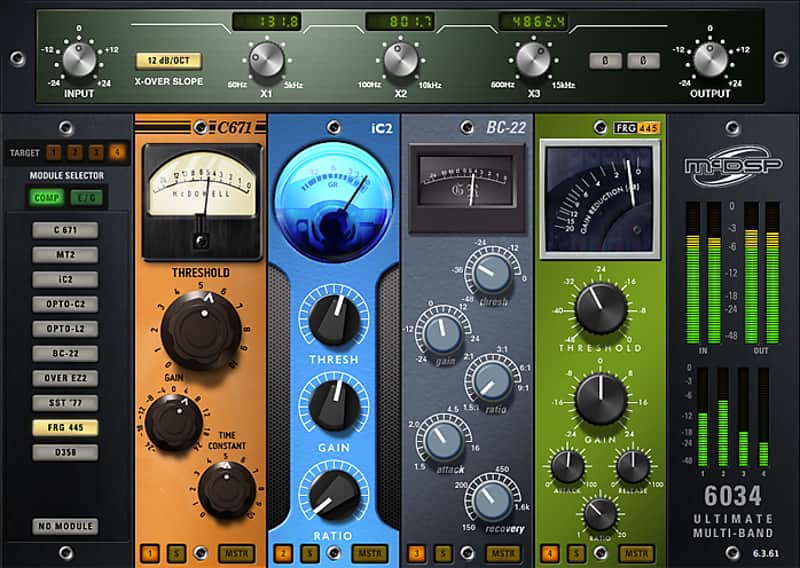
The 6034 Ultimate Multi-band is a flexible multi-band dynamics processor, offering all the award-winning compression, expansion, and gating modules from the highly acclaimed 6050 Ultimate Channel Strip plug-in, in a four band crossover network. Just like the 6050 modules, the 6034 Ultimate Multi-band modules can be swapped on the fly for quick auditioning while retaining relative settings. The crossover filter slopes can be configured as 6, 12, or 24 dB/Oct. Metering includes gain reduction and output levels on all crossover bands, as well as main input and output levels.
Artist Presets included from: Mike Dean, ROCAsound, David Bottrill, Richard Chycki, Lovy Longomba, Eric Racy, Brujo Caipo and Zakk Cervini.
Features:
- Includes award-winning compressor modules from the 6050 Ultimate Channel Strip
- Configurable four-band crossover with multiple filter slope options
- On the fly module auditioning
- Input and output control
- Analog Saturation Modeling
- Double precision processing
- Ultra low latency
- Mono and stereo versions
Compatibility
- Native v6: Full featured products. AAX Native (32/64-bit), Audiosuite, AU (64-bit), VST (64-bit) plug-in formats supported.
- McDSP Native plug-ins support AAX Native, AU, VST, and VST3 plug-in formats. McDSP HD plug-ins additionally support the AAX DSP plug-in format, as well as AAX Native, AU, VST, and VST3 plug-in formats. McDSP plug-ins support Mac OS 10.7.2 or later (Lion), 10.8.x (Mountain Lion), 10.9.x (Mavericks), 10.10.x (Yosemite), 10.11.x (El Capitan), and Windows 7, 8, and 10.
- McDSP AAX plug-ins require Windows 7 or later, Mac OS 10.7.2 or later, and support Pro Tools 10.3.8 or later, 11.1.3 or later, and Pro Tools 12.x or later.
- McDSP AU plug-ins require Mac OS 10.7.2 or later, and support Logic 9 and Logic X, Digital Performer, Ableton Live, and other AU compatible DAWs.
- McDSP VST and VST3 plug-ins require Windows 7 or later, Mac OS 10.7.2 or later, and support Cubase 7.x or later, Nuendo 6.5.x or later, and other VST and VST3 compatible DAWs.
- McDSP plug-ins require an iLok2 USB Smart Key for authorization. AAX, AU and VST plug-ins require the use of an iLok2.
Installation Instructions
Instructions:
- After you purchase your McDSP plugin, Reverb SYNC will email you a SYNC serial number.
- To claim that SYNC serial number, Email [email protected] the SYNC serial number
- Reverb SYNC will email you back a McDSP serial code.
- Sign up or Login to your iLok account at https://www.ilok.com/#!home
- Download and install the free iLok License Manager to activate and manage your plug-in licenses.
- Using the iLok License Manager, authorize your plugin with the McDSP serial code.
- If your McDSP license says: ‘Plugin name Native v6′ — You are on correct version.
- Find your plug-in license in the iLok License Manager and activate it on your computer.
- Download the latest Native v6 installer of that plugin from McDSP Downloads page at http://mcdsp.com/downloads/
- Run it on the same computer as your DAW and iLok License Manager.
- Launch your DAW. If you do not see the plug-in, you may need to rescan.
- If Ableton Live is closed, open it and skip to #5.
- If Ableton Live is already open, go to Preferences.
- Go to Files & Folder.
- Click "Rescan plugins".
- Find the plugin in the Ableton plugins folder in the sidebar.
- Drag-and-drop the plugin onto your track at the bottom of the screen.
- Open Logic Pro X. Newly installed plugins should be detected automatically every time Logic is opened.
- If you've downloaded an effect or utility plugin, these can be used on an insert for any track in the mixer.
- Create a software instrument track if you downloaded a virtual instrument plugin.
- Under Default Patch, go to AU Instruments and choose the plugin you just installed.
- Open Pro Tools. Newly installed plugins should be detected automatically every time Pro Tools is opened.
- If you've downloaded an effect or utility plugin, these can be used on an insert for many types of tracks (Audio, Aux, Instrument, Master Fader...)
- If you’ve downloaded a software instrument, create a new Instrument track.
- Navigate to the Mixer and locate the newly created Instrument track.
- Select the desired instrument plugin by clicking on any of the Inserts on the Instrument track.
- Go to the Reverb SYNC Software and plugin Collection.
- Choose your desired plugin.
- Reverb will auto-detect your platform, so simply click the download button.
- Continue the installation process by following the prompt.
- Hover your mouse over the smart control button.
- Click Show Inspector icon.
- Click on plugins and choose your desired plugin.