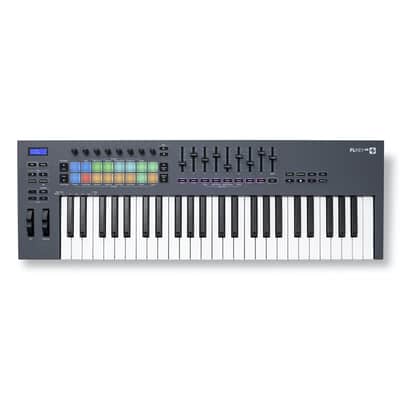
Novation FLkey 49 MIDI Keyboard Controller 2023 - Present - Black
This seller has not set a shipping cost for Slovenia. Please contact them to ask about shipping.
Our users rate Reverb
1778948763097957441361609392915.jpg
Tracking #
1000118676.jpg
1000118677.jpg
1000118678.jpg
1000118679.jpg
Brand , model and year
If you mean a TikTok Shop, Shopify store, or automation/e-commerce store, ownership transfer usually works like this:
Shopify Store Ownership Transfer
Before Transfer
The new owner should have:
Their own Shopify account/email
Payment method ready
Business info/tax info ready
Step-by-Step (Shopify)
1. Add Them as Staff
In Shopify Admin:
Settings → Users & Permissions → Add Staff
Enter:
Their email
Give full permissions if needed
They accept invite through email.
2. Transfer Store Ownership
After they accept:
Go to:
Settings → Users & Permissions
Scroll to:
Store Owner
Click Transfer Ownership
You’ll:
Enter your password
Select their account
Confirm transfer
What Transfers
Usually transfers:
Products
Theme/site
Domain connection
Apps
Customers
Orders
Store design
Social connections (sometimes manually)
What Usually Does NOT Automatically Transfer
The new owner may need to reconnect:
Bank payouts
TikTok ads
Meta ads
Google ads
Tax settings
Shopify
How to Transfer Shopify Store Ownership
On Desktop
1. Log Into Shopify Admin
Go to:
Shopify Admin
2. Add the New Owner First
Go to:
Settings → Users and permissions
Click:
Add staff
Enter:
Their name
Their email
Give them permissions.
They must accept the invite email first.
3. Transfer Ownership
After they accept:
Go back to:
Settings → Users and permissions
Find:
Store owner
Click:
Transfer ownership
Then:
Enter your Shopify password
Select the new owner
Confirm
Important Things to Know
Ownership Transfer Gives Them:
Full control of the store
Billing access
Shopify Balance access
Domain management
Apps/settings access
Ability to remove you
You Should Remove First Before Transfer (If Needed)
If this is a store you built to sell/transfer:
Disconnect:
Your personal bank account
Shopify Balance
Personal debit cards
Tax info if appropriate
Personal PayPal
Meta/TikTok ad accounts
Domain Transfer
If domain bought through Shopify:
It normally stays attached and transfers with ownership.
If bought elsewhere (GoDaddy, Namecheap, etc):
You may need to transfer domain separately.
Best/Safest Way
Recommended Setup:
Build store
Keep yourself as owner until payment clears
Add buyer as staff first
Transfer ownership only after full payment
After Transfer
You become:
Staff member (if they keep you)
OR
Completely removed
You will NOT control:
Payouts
Billing
Store ownership anymore
If Selling Stores Regularly
A lot of people:
Build stores under an LLC/business
Use collaborator/staff accounts
Transfer ownership after delivery
That’s the normal process for agency/store-flipping setups.
How do I transfer all my files and pics from my phone to laptop
Easiest Ways to Transfer Photos & Files From Android to Laptop
Since you use a Samsung Galaxy S23+, these are the best methods:
Option 1 — USB Cable (Fastest & Best)
What You Need
USB-C charging cable
Windows laptop
Steps
1. Plug Phone Into Laptop
Use your USB cable.
2. Unlock Your Phone
VERY important or files may not show.
3. On Your Phone
You’ll see:
USB options
or notification saying:
“Charging this device via USB”
Tap it.
Change to:
File Transfer / Android Auto
NOT charging only.
4. On Laptop
Open:
File Explorer
You should now see:
Galaxy S23+
or
This PC → Samsung
5. Open Folders
Usually:
DCIM → Camera photos/videos
Pictures
Downloads
Movies
Music
6. Drag Files to Laptop
Create a folder on desktop like:
“Samsung Backup”
Then drag everything over.
Option 2 — Quick Share (Wireless Samsung Method)
Samsung has Apple AirDrop-style transfer now.
On Phone
Turn on:
Wi-Fi
Bluetooth
Quick Share
On Laptop
Install:
Samsung Quick Share for Windows
Then:
Open Quick Share on laptop
Select files on phone
Share to laptop wirelessly
Good for:
Photos
Videos
Small transfers
Option 3 — Google Photos Backup
Best if you want cloud backup too.
On Phone
Install/open:
Google Photos
Turn on:
Backup & Sync
Then on laptop:
Go to Google Photos website
Download everything
Option 4 — External SSD/Flash Drive
Best for LARGE storage.
Use:
USB-C flash drive
OR
External SSD
Copy directly from phone to drive.
Fast and good for backups.
My Recommendation For You
Since you likely have:
Music files
Photos/videos
Business screenshots/docs
I’d do:
Best Setup
USB cable transfer to laptop
Organize folders
Backup important stuff to:
Google Drive
External SSD
That way nothing gets lost if phone breaks/reset happens.
1000118691.jpg
Describe this item and condition for reverb copy n paste
Reverb Description (Copy & Paste)
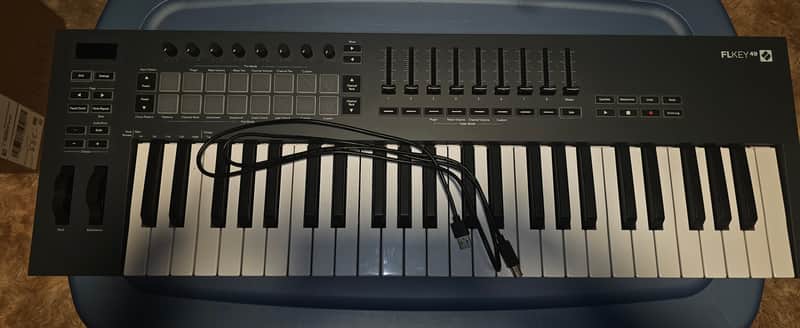
Excellent condition FLkey 49 MIDI keyboard controller by Novation. Fully functional and very clean with minimal signs of use. Includes original USB cable.
Designed specifically for seamless integration with FL Studio, featuring:
49 full-size keys
Mixer and channel controls
Drum pads
Scale and chord modes
Transport controls
Pitch/mod wheels
Deep FL Studio workflow integration
Great for hip-hop, trap, EDM, synth work, and music production setups.
Condition:
Tested and working properly
Keys, pads, knobs, and faders function as expected
Clean overall cosmetic condition
Includes USB cable
No major scratches or damage visible
Perfect controller for FL Studio producers wanting hands-on control and workflow speed.
Maintained in a smoke free environment
| Listed | a month ago |
|---|---|
| Condition | Excellent (Used) Excellent items are almost entirely free from blemishes and other visual defects and have been played or used with the utmost care.Learn more |
| Brand | |
| Model |
|
| Finish |
|
| Categories | |
| Year |
|
| Number of Keys |
|
| MIDI I/O |
|
| Number of Pads |
|
| Keyboard Action |
|
Product safety information may be available here.