Craig Anderton's Amazing Multiband Helix Presets-FREE DEMO
This listing has ended
See similar gear from other Reverb sellers

Our users rate Reverb
There are three multiband demo presets included, along with the same presets as single-band versions for comparison.
1-Band A30 Fawn.hlx 3-Band A30 Fawn.hlx
1-Band Mandrin80.hlx 3-Band Mandrin80.hlx
1-Band PV Panama.hlx 3-Band PV Panama.hlx
The Multiband presets include all 8 snapshots, as with the full versions.
Why Multiband?
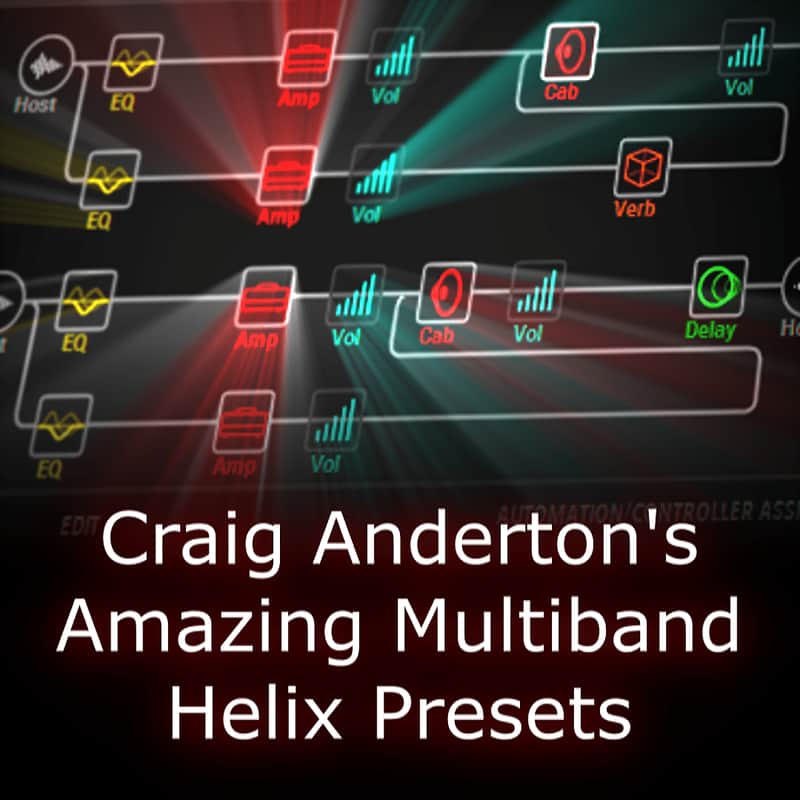
A multiband preset uses a sophisticated amp/cabinet architecture to deliver a more defined, articulated amp sound—especially with distortion. The presets divide the guitar sound into two to four frequency bands. Each band then goes through its own amp.
A major benefit is “cleaner” distortion. If you hit low strings and high strings at the same time with conventional, single-band distortion, the strings interact with each other. This may lead to indistinct and sometimes harsh distortion. Multiband distortion is more “focused” because each amp+cab needs to distort only a limited frequency range. Helix mixes the processed bands back together to create the final output.
Think of multiband presets as turning Helix from a multieffects into an extremely customizable amp, with an alternative type of distortion sound. Even if some of the single-band amps aren’t your favorites, the multiband versions might change your mind. Several amp and cabinet parameters in these presets have been tweaked to take advantage of multiband operation.
About the Presets
There are three multiband demo presets included, along with the same presets as single-band versions for comparison.
1-Band A30 Fawn.hlx 3-Band A30 Fawn.hlx 1-Band Mandrin80.hlx 3-Band Mandrin80.hlx 1-Band PV Panama.hlx 3-Band PV Panama.hlx
The Multiband presets include all 8 snapshots, as with the full versions.
Page 1
Importing the Presets
Helix Native: Load individual .hlx Presets. Helix Floor, Rack, and LT: Import individual .hlx Presets using HX Edit.
PLEASE NOTE: Make sure that your HX Edit software is running version 2.71, and the Helix firmware version is also 2.71. Both are available from the Line 6 web site under Downloads. If the two aren’t matched, you may not be able to load these presets.
Confirm Correct Levels
All Helix multiband presets depend on being fed the appropriate signal level. These presets assume the guitar, or dry guitar track in the studio, is feeding the Helix at close to the maximum level available. With Helix Native, use your program’s Normalization or Gain Change function to make sure the guitar track’s audio peaks hit around -1 dB or so. Set the final track level going to your master bus with the track’s channel fader, and/or trim the output within Helix itself.
In the Studio: Using Helix Native
These presets make extensive use of stereo, yet guitars are mono instruments. Make sure the guitar track’s output or track type is set to Stereo.
When recording guitar, please refer to Figure 1. Either record the guitar in mono (as in Track 1), convert the mono track to dual mono (Track 2), or split the guitar and record into both channels (also as shown in Track 2). For the best possible sound quality, do not record into only one channel of a stereo pair (Track 3). However, you can usually send a track like this to a stereo bus (use a pre-fader send), insert Helix Native in the bus, and a mono track will drive both channels (as in Track 2).
Compatibility
These demo presets are compatible with the latest versions of Helix Floor, Rack, Native, and LT
Installation Instructions
Importing the Presets
Helix Native: Load individual .hlx Presets. Helix Floor, Rack, and LT: Import individual .hlx Presets using HX Edit.
PLEASE NOTE: Make sure that your HX Edit software is running version 2.71, and the Helix firmware version is also 2.71. Both are available from the Line 6 web site under Downloads. If the two aren’t matched, you may not be able to load these presets.
| Brand | |
|---|---|
| Model |
|
| Categories |
Product safety information may be available here.