
u-he Hive Synth
Ce matériel a été vendu
Découvrez du matériel similaire proposé par d'autres vendeurs Reverb

Nos utilisateurs évaluent Reverb
What it is:
A lightweight synth with a heavyweight sound.
How we use it:
From pads to leads and beyond - Hive enables you to pick a sound, tweak it, and move-on without any headaches.
Why it's cool:
For beginners - Hive allows you to find a great sound with ease. For advanced synth users - Hive provides a fantastic foundation, enabling you to dive in and quickly synthesize the sound in your head.
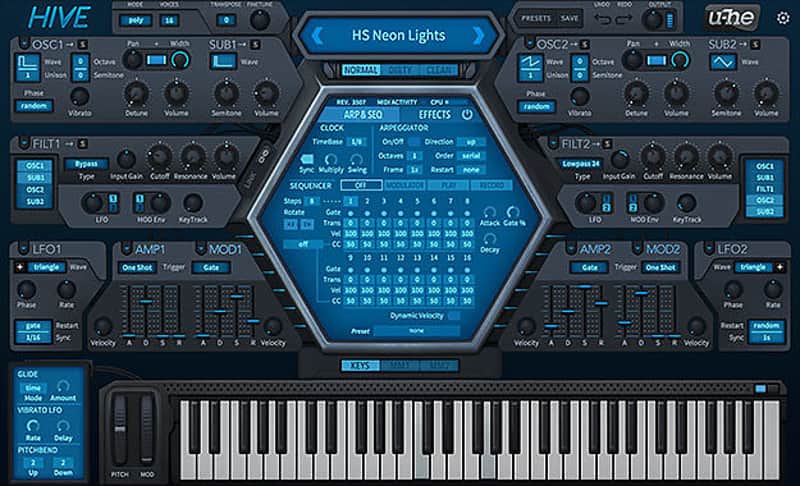
Hive was made to be fast and simple. The streamlined single screen UI lets you dive into sound creation immediately. A fluid workflow invites you to tweak away until your sound is just right (or wrong in just the right way). Hive was engineered to be light on CPU, and won’t slow you down while you work. But being “fast and simple” doesn’t mean we’ve sacrificed sound quality or creative control - Hive is packed with features, controls and enough flexibility to deliver stunning sounds.
Whatever your style - from dance to ambient, progressive rock to R&B - Hive is the right tool for the job: a lightweight synth that delivers a heavyweight sound!
Features
- Single page user interface
- 2,700 presets
- 2 main oscillators, 2 sub-oscillators
- 3 synth engine characters (Normal, Dirty, Clean)
- Up to 16x unison per oscillator
- 2 multimode filters (LP, HP, BP, BR or Peak)
- Flexible oscillator and filter routing
- Solo buttons for individual oscillators and filters
- Arpeggiator, step sequencer
- 12-slot modulation matrix, 2 targets per slot
- Drag & drop modulation assignment
- Create, save and load individual panel presets
- 7 quality effects, rearrange in any order
- Global configuration overlays, including MIDI learn
Compatibility
- Current PC or intel Mac
- Multicore CPU with SSE2
(Sandy Bridge architecture or newer recommended) - Mac OSX 10.5 or newer
- Windows XP / Vista / 7 / 8 / 10
- 1GB RAM, more recommended
- 60MB free disc space
- display 1000x600px and up
- OSX: VST2 or AU compatible host software
- Windows: VST2 compatible host software
- Supports 32bit and 64bit in all formats
- AAX support for Pro Tools 10.3.7 or later, 11 & 12
Installation Instructions
Installation Instructions:
- After you purchase your u-he product, Reverb SYNC will email your serial number
- To activate that serial number, go to: http://www.u-he.com/redeem/
- Fill out the form
- After you have filled in the following form, a personal product license key will be sent to you by e-mail immediately
- You will be directed to download the plugin and activate it
- If Ableton Live is closed, open it and skip to #5.
- If Ableton Live is already open, go to Preferences.
- Go to Files & Folder.
- Click "Rescan plugins".
- Find the plugin in the Ableton plugins folder in the sidebar.
- Drag-and-drop the plugin onto your track at the bottom of the screen.
- Open Logic Pro X. Newly installed plugins should be detected automatically every time Logic is opened.
- If you've downloaded an effect or utility plugin, these can be used on an insert for any track in the mixer.
- Create a software instrument track if you downloaded a virtual instrument plugin.
- Under Default Patch, go to AU Instruments and choose the plugin you just installed.
- Open Pro Tools. Newly installed plugins should be detected automatically every time Pro Tools is opened.
- If you've downloaded an effect or utility plugin, these can be used on an insert for many types of tracks (Audio, Aux, Instrument, Master Fader...)
- If you’ve downloaded a software instrument, create a new Instrument track.
- Navigate to the Mixer and locate the newly created Instrument track.
- Select the desired instrument plugin by clicking on any of the Inserts on the Instrument track.
- Go to the Reverb SYNC Software and plugin Collection.
- Choose your desired plugin.
- Reverb will auto-detect your platform, so simply click the download button.
- Continue the installation process by following the prompt.
- Hover your mouse over the smart control button.
- Click Show Inspector icon.
- Click on plugins and choose your desired plugin.
| Marque | |
|---|---|
| Modèle |
|
| Catégories |
Des informations concernant la sécurité des produits peuvent être disponibles ici.