TAL-U-No-62
PriceFREE
Incl. VAT
Instant Download
This listing has ended
See similar gear from other Reverb sellers
Listed:over a month ago
Views:13,753
Saves:93
Downloads:3,011

Chicago, IL, United States
Our users rate Reverb
Most everything you know and love about the original in a concise, digital package.
What it is:
A digital recreation of the Juno 60 polyphonic synth.
How we use it:
Add classic analog synthesis to a track.
Why it's cool:
Classic Juno chorus adds unmistakable character to your synth track.
Compatibility
General Instructions:
What it is:
A digital recreation of the Juno 60 polyphonic synth.
How we use it:
Add classic analog synthesis to a track.
Why it's cool:
Classic Juno chorus adds unmistakable character to your synth track.
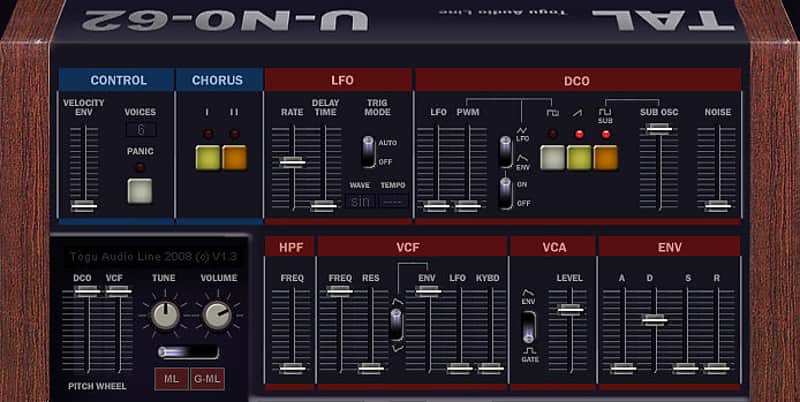
The U-NO-62 is a polyphonic virtual analogue synth with a unique filter sound. An original JUNO 60 is used as reference for the oscillators and filters.
Like the original, the plugin is capable of self-resonance and thus could be used to some degree as a tone generator. The filter section also features controls for envelope amount and polarity, LFO modulation and keyboard tracking. In addition, a non-resonant highpass filter is provided to thin out lower frequencies. The U-NO-60, notwithstanding, few parameters, can make a wide range of different and exciting sounds.
- Polyphonic (6 voices)
- Bandlimited oscillators
- One syncable LFO with five different waveforms
- 24 dB lowpass filter with self oscillation, non-resonant high-pass filter
- Fast ADSR envelopes
- Smooth cutoff changes (also with midi controllers)
- Velocity sensitive filter envelope
- Midi learn for all potis
- Supports all sample rates
- 20 Presets
Compatibility
General Instructions:
- We auto-detect your computer operating system, so just click the download button above.
- Find the downloaded plugin (it's in your computer's download folder, or wherever you've chosen to save it) and double click the installer.
- A plugin installer window will open. Simply go through the installation process.
- We will also send you an email with a link to re-download in case you need it.
- If Ableton Live is closed, open it and skip to #5.
- If Ableton Live is already open, go to Preferences.
- Go to Files & Folder.
- Click "Rescan plugins".
- Find the plugin in the Ableton plugins folder in the sidebar.
- Drag-and-drop the plugin onto your track at the bottom of the screen.
- Open Logic Pro X. Newly installed plugins should be detected automatically every time Logic is opened.
- If you've downloaded an effect or utility plugin, these can be used on an insert for any track in the mixer.
- Create a software instrument track if you downloaded a virtual instrument plugin.
- Under Default Patch, go to AU Instruments and choose the plugin you just installed.
- Go to the Reverb SYNC Software and plugin Collection.
- Choose your desired plugin.
- Reverb will auto-detect your platform, so simply click the download button.
- Continue the installation process by following the prompt.
- Hover your mouse over the smart control button.
- Click Show Inspector icon.
- Click on plugins and choose your desired plugin.
| Brand | |
|---|---|
| Model |
|
| Categories |
Product safety information may be available here.