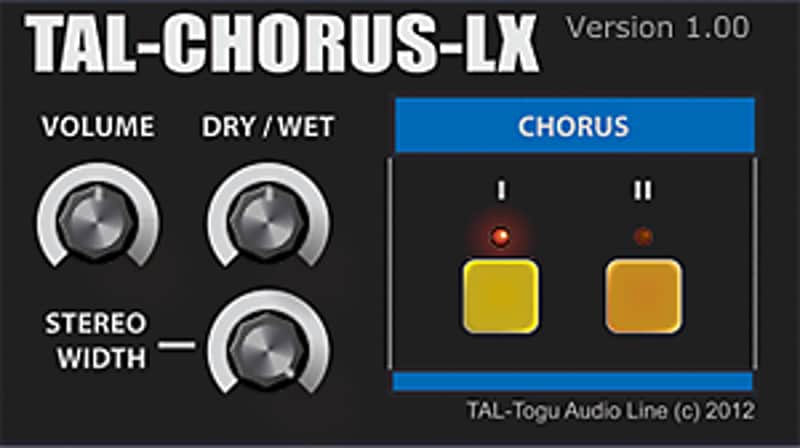
TAL-Chorus-LX
PriceFREE
Instant Download
This listing has ended
See similar gear from other Reverb sellers
Listed:over a month ago
Views:5,703
Saves:57
Downloads:1,515

Chicago, IL, United States
Our users rate Reverb
TAL-CHORUS-LX - Spread the iconic chorused warble of the Juno-60 across any track.
What it is:
A standalone version of the chorus implemented in the TAL-U-NO-LX, based on the chorus found in the famed Roland Juno-60.
How we use it:
Add even more space and movement to a stereo signal.
Why it’s cool:
TAL-CHORUS-LX makes the Juno-60 chorus infinitely more versatile as it can be used on so much more than a its original synth counterpart.TAL-Chorus-LX is a 1:1 standalone version of the chorus implemented in TAL-U-NO-LX.
Features:
Compatibility
Requirements:
Installation Instructions
How to use installed plugins in Ableton Live: https://youtu.be/N2VjFjUhlR4
What's new?
Version History:
What it is:
A standalone version of the chorus implemented in the TAL-U-NO-LX, based on the chorus found in the famed Roland Juno-60.
How we use it:
Add even more space and movement to a stereo signal.
Why it’s cool:
TAL-CHORUS-LX makes the Juno-60 chorus infinitely more versatile as it can be used on so much more than a its original synth counterpart.TAL-Chorus-LX is a 1:1 standalone version of the chorus implemented in TAL-U-NO-LX.
Features:
- Characteristics of the Juno-60 chorus.
- 2 different modes.
- Dry/Wet control.
- Volume knob.
- Only stereo channels supported.
Compatibility
Requirements:
- Windows: Windows XP or higher (32 / 64 bit)
- OSX: OSX 10.7 or higher (32 / 64 bit).
- AAX: Pro Tools 10.3.6 or higher
Installation Instructions
How to use installed plugins in Ableton Live: https://youtu.be/N2VjFjUhlR4
- If Ableton Live is closed, open it and skip to #5.
- If Ableton Live is already open, go to Preferences.
- Go to Files & Folder.
- Click "Rescan plugins".
- Find the plugin in the Ableton plugins folder in the sidebar.
- Drag-and-drop the plugin onto your track at the bottom of the screen.
- Open Logic Pro X. Newly installed plugins should be detected automatically every time Logic is opened.
- If you've downloaded an effect or utility plugin, these can be used on an insert for any track in the mixer.
- Create a software instrument track if you downloaded a virtual instrument plugin.
- Under Default Patch, go to AU Instruments and choose the plugin you just installed.
- Go to the Reverb SYNC Software and plugin Collection.
- Choose your desired plugin.
- Reverb will auto-detect your platform, so simply click the download button.
- Continue the installation process by following the prompt.
- Hover your mouse over the smart control button.
- Click Show Inspector icon.
- Click on plugins and choose your desired plugin.
What's new?
Version History:
- Possible AAX crash fixed (v 1.2.1)
- Framework update. Fixes UI performance issues on some OSX hosts with VST (v1.2.0)
- AAX Pro-Tools support. OSX 10.5 not supported anymore. (Version 1.03)
- Bypass issue when loading plugin fixed. (Version 1.02)