
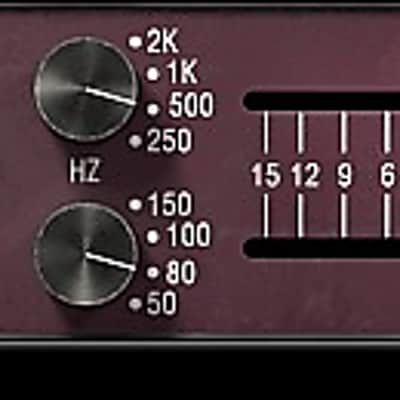

Softube Trident A-Range
New Price€111.58
Incl. VAT
Instant Download
This gear has sold
See similar gear from other Reverb sellers
Listed:over a month ago
Views:261
Saves:1
Offers:2

Chicago, IL, United States
Our users rate Reverb
From Ziggy to Queen.
What it is:
Softube's emulation of the iconic EQ from the Trident A-Range consoles.
How we use it:
Sit a track in the mix while adding the analog character of a classic console.
Why it's cool:
With only 13 in existence, Softube brings an iconic circuit to the masses. The Trident A-Range equalizer is a legendary piece of equipment. As only thirteen A-Range consoles were ever made, it remains a holy grail for sound engineers and producers around the world that hope to create works of art equal to those that were originally recorded on the A-Range - David Bowie's Ziggy Stardust, Queen, Elton John, the list goes on...
It is sometimes said that one of the disadvantages of digital mixing and recording is that the happy accidents one could experience with analog gear just don't happen in the DAW. People saying that clearly haven't tried Softube's Trident A-Range equalizer.
Because the Trident A-Range is not only a tremendously nice sounding and highly characteristic equalizer. Its four frequency bands also have a way of integrating in sometimes rather unpredictable ways. More often than not you will find that the equalizer ends up giving you something even better than you may have expected when you made a certain setting. In this sense, the Trident A-Range is more of a musical instrument than a strictly scientific tool. We think this is one of the major reasons it has been used on so many great classic rock albums and why it's still one of the most coveted pieces of audio equipment around.
Only thirteen A-Range consoles were ever built, and the Softube plug-in version is a very exact model of channel 15 of the Trident A-Range at Sweet Silence Studio 'B' in Denmark. This is producer Flemming Rasmussen's favorite channel for recording lead vocals. Flemming also used it for the solo and rhythm guitars on Metallica's "Ride The Lightning" and "Master of Puppets", as well as Ritchie Blackmore's guitar on the Rainbow albums "Difficult to Cure" and "Bent out of Shape".
The A-Range channel features four bands of equalization plus high and low pass filters. By driving the console hot, it is possible to get it to distort with a hairy and effective saturation that is just right in some situations, and just wrong in others! We added a separate Saturation control to let you choose easily. Turn it down for clean (and less CPU draw), and up for the sound of a Trident A-Range hard at work.
In Short
Compatibility
Mac
Installation Instructions
What it is:
Softube's emulation of the iconic EQ from the Trident A-Range consoles.
How we use it:
Sit a track in the mix while adding the analog character of a classic console.
Why it's cool:
With only 13 in existence, Softube brings an iconic circuit to the masses. The Trident A-Range equalizer is a legendary piece of equipment. As only thirteen A-Range consoles were ever made, it remains a holy grail for sound engineers and producers around the world that hope to create works of art equal to those that were originally recorded on the A-Range - David Bowie's Ziggy Stardust, Queen, Elton John, the list goes on...
It is sometimes said that one of the disadvantages of digital mixing and recording is that the happy accidents one could experience with analog gear just don't happen in the DAW. People saying that clearly haven't tried Softube's Trident A-Range equalizer.
Because the Trident A-Range is not only a tremendously nice sounding and highly characteristic equalizer. Its four frequency bands also have a way of integrating in sometimes rather unpredictable ways. More often than not you will find that the equalizer ends up giving you something even better than you may have expected when you made a certain setting. In this sense, the Trident A-Range is more of a musical instrument than a strictly scientific tool. We think this is one of the major reasons it has been used on so many great classic rock albums and why it's still one of the most coveted pieces of audio equipment around.
Only thirteen A-Range consoles were ever built, and the Softube plug-in version is a very exact model of channel 15 of the Trident A-Range at Sweet Silence Studio 'B' in Denmark. This is producer Flemming Rasmussen's favorite channel for recording lead vocals. Flemming also used it for the solo and rhythm guitars on Metallica's "Ride The Lightning" and "Master of Puppets", as well as Ritchie Blackmore's guitar on the Rainbow albums "Difficult to Cure" and "Bent out of Shape".
The A-Range channel features four bands of equalization plus high and low pass filters. By driving the console hot, it is possible to get it to distort with a hairy and effective saturation that is just right in some situations, and just wrong in others! We added a separate Saturation control to let you choose easily. Turn it down for clean (and less CPU draw), and up for the sound of a Trident A-Range hard at work.
In Short
- EQ with a will of its own
- Created together with original designer Professor Malcolm Toft
- Each and every component carefully modeled
- Saturation control
- Very CPU friendly
Compatibility
Mac
- Intel processor
- OS X 10.5 or higher
- 1GB RAM
- 1024 x 768 minimum screen resolution
- Host software that supports Audio Units, AAX, RTAS, or VST/VST3 plug-in formats (fully compatible with 64-bit DAWs)
- Pro Tools requires version 7.0 or higher
- iLok USB key and the latest Pace Interlok drivers
- CPU that supports SSE2 instruction set including DAZ flag (most Intel and AMD processors since 2003 supports this)
- Windows XP (32-bit only), Vista, Windows 7
- 1GB RAM
- 1024 x 768 minimum screen resolution
- Host software that supports AAX, RTAS, or VST/VST3 plug-in formats (fully compatible with 64-bit DAWs)
- Pro Tools use requires version 7.0 or higher
- iLok USB key and the latest Pace Interlok drivers
Installation Instructions
Create a Softube/Gobbler account here: https://www.softube.com/index.php?id=myaccount
Download and install the Gobbler App
- Open the Gobbler App and sign in using your Softube/Gobbler account
- In the Gobbler App, click "Install All" to install all Softube products you have a license for - use the license key emailed to you by Reverb SYNC.
- If you have new licenses, keep the Gobbler App running when starting your DAW. The first time you run a plug-in, you will get a prompt for activation. Please follow the step by step instructions.
- We auto-detect your computer operating system, so just click the download button above.
- Find the downloaded plugin (it's in your computer's download folder, or wherever you've chosen to save it) and double click the installer.
- A plugin installer window will open. Simply go through the installation process.
- We will also send you an email with a link to re-download in case you need it.
- If Ableton Live is closed, open it and skip to #5.
- If Ableton Live is already open, go to Preferences.
- Go to Files & Folder.
- Click "Rescan plugins".
- Find the plugin in the Ableton plugins folder in the sidebar.
- Drag-and-drop the plugin onto your track at the bottom of the screen.
- Open Logic Pro X. Newly installed plugins should be detected automatically every time Logic is opened.
- If you've downloaded an effect or utility plugin, these can be used on an insert for any track in the mixer.
- Create a software instrument track if you downloaded a virtual instrument plugin.
- Under Default Patch, go to AU Instruments and choose the plugin you just installed.
- Open Pro Tools. Newly installed plugins should be detected automatically every time Pro Tools is opened.
- If you've downloaded an effect or utility plugin, these can be used on an insert for many types of tracks (Audio, Aux, Instrument, Master Fader...)
- If you’ve downloaded a software instrument, create a new Instrument track.
- Navigate to the Mixer and locate the newly created Instrument track.
- Select the desired instrument plugin by clicking on any of the Inserts on the Instrument track.
- Go to the Reverb SYNC Software and plugin Collection.
- Choose your desired plugin.
- Reverb will auto-detect your platform, so simply click the download button.
- Continue the installation process by following the prompt.
- Hover your mouse over the smart control button.
- Click Show Inspector icon.
- Click on plugins and choose your desired plugin.
General Instructions: