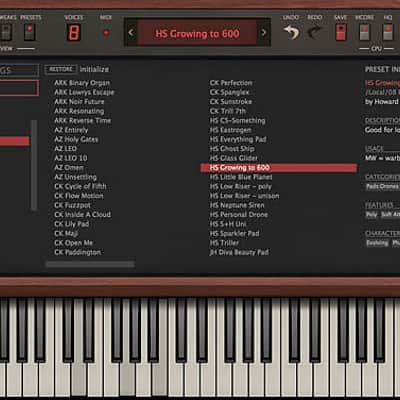
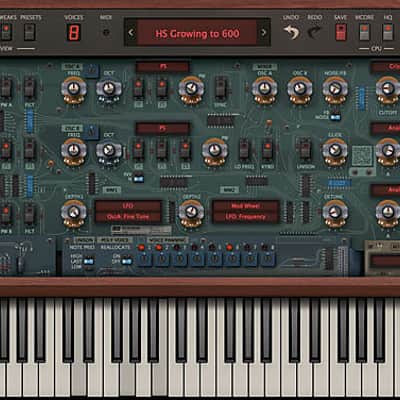

u-he Repro-1 & Repro-5 Plugin
Ce matériel a été vendu
Découvrez du matériel similaire proposé par d'autres vendeurs Reverb

Nos utilisateurs évaluent Reverb
Dive into the world of analog with this retro-inspired synth.
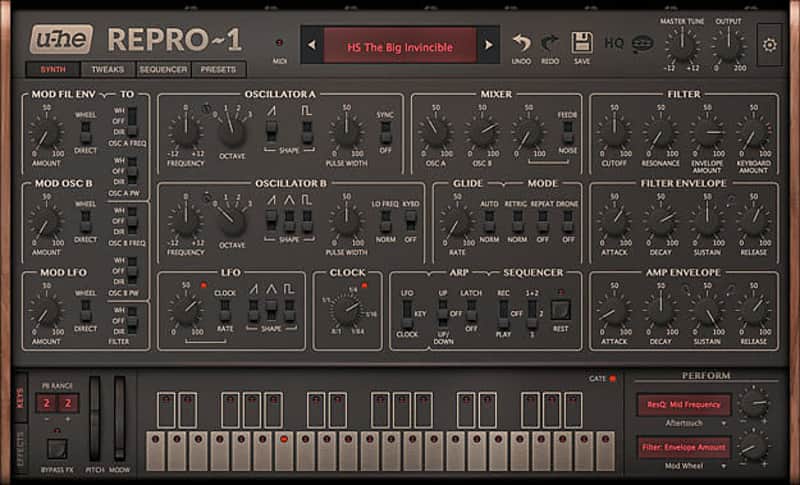
What it is:u-he's Repro 1 and Repro 5 mono and poly synthesizers.
How we use it:
For leads, pads, and bass lines that require raw, analog sound.
Why it's cool:
u-he provides the top-tier synths of yesterday with an extraordinarily convincing analog sound.
Repro dives into the past for analogue inspiration, meticulously modelling two famous synthesizers. Every detail of the original was captured using component-level modelling technology to create the most authentic model possible. All the subtle characteristics and quirks found in the originals are present in Repro. One product, one installer, two synths.
Repro contains Repro-1 and Repro-5.
Repro-1 is a fierce monosynth: hard working, raw sounding and immediately playable. The classic design is simple and intuitive but belies a deep feature set capable of a wide range of sounds.
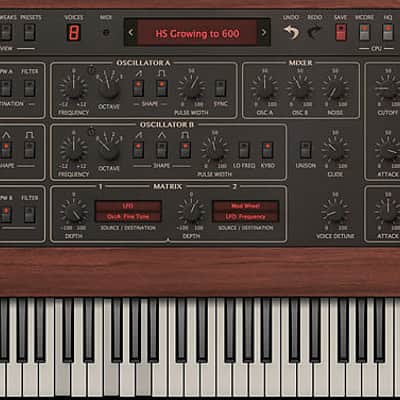
Repro-5 is the new polyphonic addition. It has a lot in common with Repro-1, a similar design and feature plus shared sonic DNA. But Repro-5 introduces new flavours, most notably is ability to play lush chords or thick unison leads, while keeping the authentic analogue sound.
Compatibility
- Current PC or Intel Mac
- Modern CPU (Sandy Bridge architecture or newer recommended)
- Mac OS X 10.7 or newer
- Windows 7 or newer
- 1GB RAM, more recommended
- 60MB free disc space
- display 1000x600px and up
- Mac OS X: AAX, AU, NKS, VST2 or VST3 compatible host software
- Windows: AAX, NKS, VST2 or VST3 compatible host software
- Supports 32bit and 64bit in all formats
- AAX support for Pro Tools 10.3.7 or later, 11 & 12
Installation Instructions
Installation Instructions:
- After you purchase your u-he product, Reverb SYNC will email your serial number
- To activate that serial number, go to: http://www.u-he.com/redeem/
- Fill out the form
- After you have filled in the following form, a personal product license key will be sent to you by e-mail immediately
- You will be directed to download the plugin and activate it
- If Ableton Live is closed, open it and skip to #5.
- If Ableton Live is already open, go to Preferences.
- Go to Files & Folder.
- Click "Rescan plugins".
- Find the plugin in the Ableton plugins folder in the sidebar.
- Drag-and-drop the plugin onto your track at the bottom of the screen.
- Open Logic Pro X. Newly installed plugins should be detected automatically every time Logic is opened.
- If you've downloaded an effect or utility plugin, these can be used on an insert for any track in the mixer.
- Create a software instrument track if you downloaded a virtual instrument plugin.
- Under Default Patch, go to AU Instruments and choose the plugin you just installed.
- Open Pro Tools. Newly installed plugins should be detected automatically every time Pro Tools is opened.
- If you've downloaded an effect or utility plugin, these can be used on an insert for many types of tracks (Audio, Aux, Instrument, Master Fader...)
- If you’ve downloaded a software instrument, create a new Instrument track.
- Navigate to the Mixer and locate the newly created Instrument track.
- Select the desired instrument plugin by clicking on any of the Inserts on the Instrument track.
- Go to the Reverb SYNC Software and plugin Collection.
- Choose your desired plugin.
- Reverb will auto-detect your platform, so simply click the download button.
- Continue the installation process by following the prompt.
- Hover your mouse over the smart control button.
- Click Show Inspector icon.
- Click on plugins and choose your desired plugin.
| Marque | |
|---|---|
| Modèle |
|
| Catégories |
Des informations concernant la sécurité des produits peuvent être disponibles ici.