Audified MultiCabinet
Audified MultiCabinet
This gear has sold
See similar gear from other Reverb sellers

Our users rate Reverb
What it is:
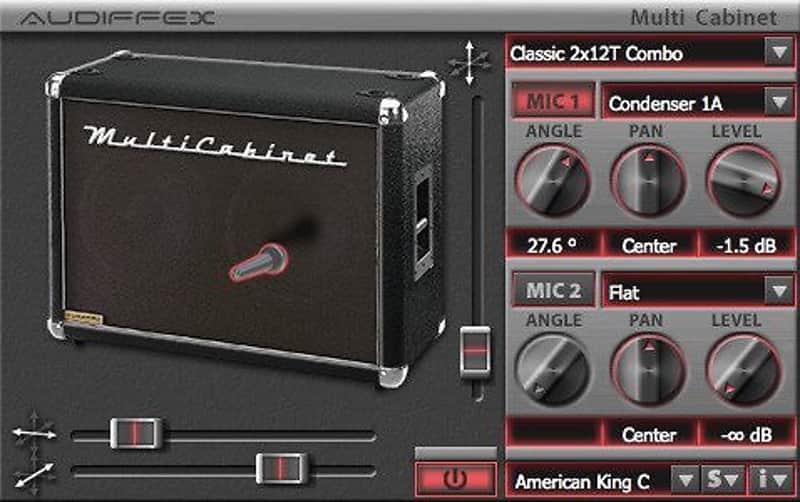
A simulator dedicated solely to the cabinet.
How we use it:
To alter the character of our tracks outside of the typical amplifier adjustments.
Why it's cool:
Classic cabinets and microphone combinations at the click of your mouse.
A selection of 12 most famous cabinets that can be miked with a selection of 8 microphones.
Every band, every song and sometimes every song verse needs a slightly different sound. With MultiCabinet you can switch between different character cabs during a single song, multiply their sounds, or even combine them.
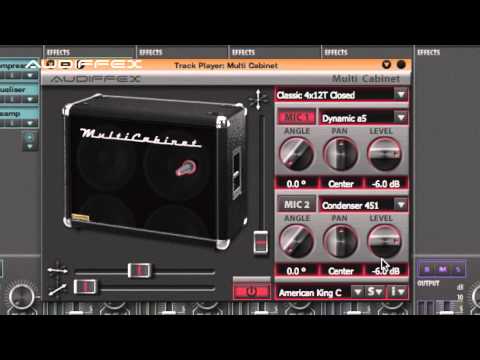
Do whatever your creativity allows you. Each microphone has an individual model selection as well as angle, pan and level controls. The controls in the Cabinet view are shared by both microphones to avoid overlapping of images.
Simulated cabinets*Marshall MG30FX Combo, Fender Blues Junior Combo, Fender RocPro 700 Combo, Line6 Spider Valve Bogner, Engl E320 Thunder 50 Combo, Marshall JCM900 Combo, Open Marshall TSLC, Closed Back MesaBoogie Rectifer 212, Half Back MesaBoogie RoadKing – left speaker, C90 Half Back MesaBoogie RoadKing – right speaker, V30 Closed Back MesaBoogie Rectifer 412 Slant, Closed Back Marshall 1960A.
Simulated microphones*Shure SM57, Audix i5, Rode NT1-A, AKG C1000, AKG C451, Sennheiser MKH40, Audix D6, AKG D112
*All product and company names are are trademarks of their respective owners, which are in no way associated or affiliated with Audiffex. They are used solely to express our admiration and respect to these legends of audio industry.
Compatibility
Mac:
- Mac OS X 10.6 - Mac OS X 10.11.
- AU 32b, AU 64b, RTAS 32b, VST2 32b, VST2 64b, VST3 32b, VST3 64b
Windows:
- Windows XP - Windows 10.
- RTAS 32b, VST2 32b, VST2 64b, VST3 32b, VST3 64b
Installation Instructions
General Instructions:
- We auto-detect your computer operating system, so just click the download button above
- Find the downloaded plugin (it’s in your computer’s download folder) and double click it
- A plugin installer window will open, so go through the installation process
- We will also send you an email with a link to re-download in case you need it
How to install plugins in Ableton Live:
- If Ableton is closed, open it and skip to #5
- If Ableton is already open, go to Preferences
- Go to Files & Folder
- Click “Rescan plugins”
- Find the plugin in the Ableton plugins folder in the sidebar
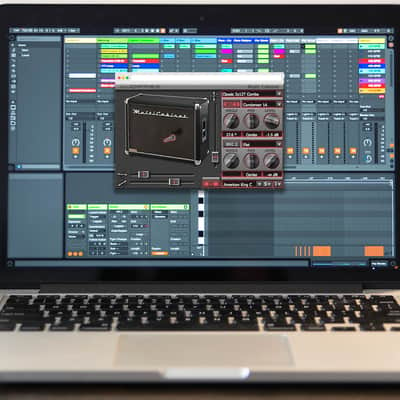
- Drag-and-drop the plugin onto your track at the bottom of the screen
- Open Logic Pro X
- Create a software instrument track if you downloaded a virtual instrument plugin
- Under Default Patch, go to AU Instruments and choose the plugin you just installed
- If you downloaded an effect or utility plugin, you can insert them on the mixer