Waves Renaissance Equalizer
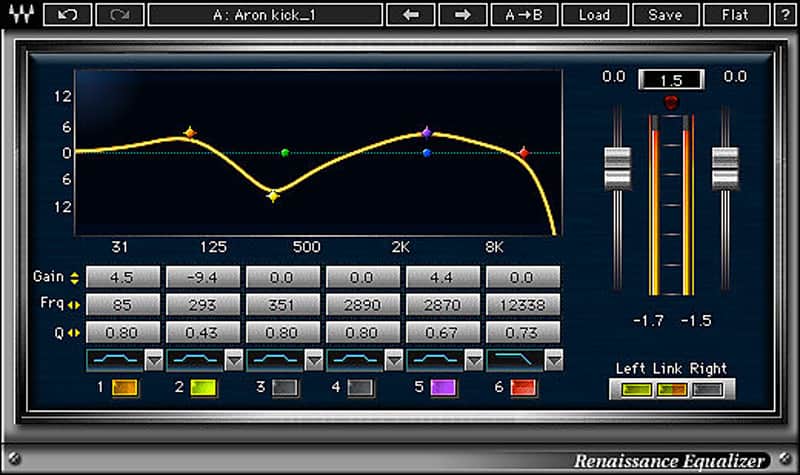
Waves Renaissance Equalizer
New Pricezł397.83
Incl. VAT
Instant Download
This gear has sold
See similar gear from other Reverb sellers
Listed:over a month ago
Views:336
Saves:4

Chicago, IL, United States
Our users rate Reverb
Real-time EQ graphing, vintage-modeled filter curves, and much more.
What it is:
Versatile paragraphic EQ from Waves.
How we use it:
For versatile, seamless equalizing.
Why it's cool:
Renaissance brings that warm, analog sound in a simple, easy to use plugin. Featuring real-time EQ graphing, vintage-modeled filter curves, and extended internal headroom, the Renaissance Equalizer is a versatile paragraphic EQ with warm, analog-style sound.
Features:
Compatibility
Mac:
CPU
CPU
Installation Instructions
What it is:
Versatile paragraphic EQ from Waves.
How we use it:
For versatile, seamless equalizing.
Why it's cool:
Renaissance brings that warm, analog sound in a simple, easy to use plugin. Featuring real-time EQ graphing, vintage-modeled filter curves, and extended internal headroom, the Renaissance Equalizer is a versatile paragraphic EQ with warm, analog-style sound.
Features:
- Intuitive EQ plugin with real-time graphing and vintage-modeled filter curves
- 2, 4, and 6 band components
- Filter-curves based on vintage analog equalizers
Compatibility
Mac:
CPU
- Intel Core i5 / i7 / Xeon
- 8 GB RAM
- 8 GB free disk space on the system drive
- 10.10.5 - 10.13.3
- Minimum: 1024x768
- Recommended: 1280x1024 / 1600x1024
- USB displays are not supported as the primary display.
- Mac OS Sierra 10.12.4
- VoiceOver Utility enabled
- Pro Tools 12.7
- Logic 10.3.1
CPU
- Intel Core i3 / i5 / i7 / Xeon / AMD Quad-Core
- 4 GB RAM
- 8 GB free disk space on the system drive
- Windows 7 with SP1 64 bit
- Windows 8.1 64 bit
- Windows 10 64 bit
- Minimum: 1024x768
- Recommended: 1280x1024 / 1600x1024
Installation Instructions
- Create an account: https://www.waves.com/create-account (if you have an account, skip this step)
- Register the serial number we emailed: https://www.waves.com/account/register
- Download and install Waves Central for Mac | Windows.
- If you already have Waves Central installed, skip to step 4. - Launch Waves Central.
- Windows: via the desktop shortcut or Start Menu > All Programs > Waves.
- Mac: Applications > Waves Central. - Log into Waves Central using your Waves account information.
- Click on Easy Install & Activate.
- Select the products you wish to install & activate on this computer.
- Click on the Install & Activate button.