AudioThing Valve Exciter
Price€50.74
Incl. VAT
Instant Download
This listing has ended
See similar gear from other Reverb sellers
Listed:over a month ago
Views:3,860
Watchers:38
Offers:4

Chicago, IL, United States
Our users rate Reverb
Vintage Harmonic Enhancer - Vintage valve emulation, and tube-based drive and bias adjustments in one suave package.
What it is:
A harmonic enhancer plugin with musically lush valve emulation.
How we use it:
Enhance the bass and treble harmonics via hand tuned filters and tube-modeled drive.
Why it’s cool:
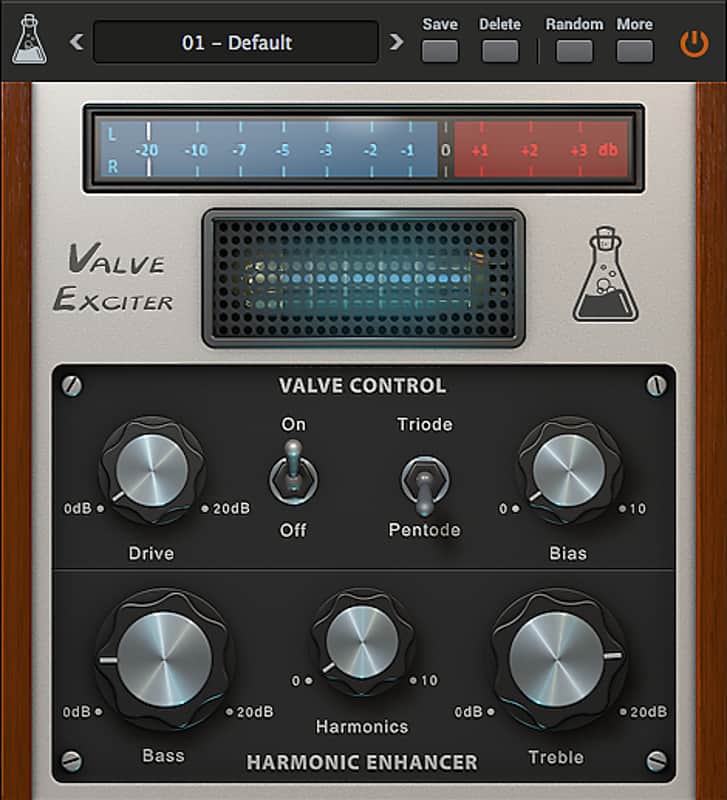
Valve Exciter is one of those special plugins that make most anything sound better.Valve Exciter is a Harmonic Enhancer plugin with vintage valve emulation. The exciter section features hand tuned filters with the ability to sweep the center frequencies via the Harmonics knob. The valve section is modelled after a softer custom version of the vintage Telefunken ECC83 tubes with drive, triode/pentode mode and bias settings.
Specifications:
Reviews:
Valve Exciter is an intriguing plugin capable of some great sounds. Sounding quite lovely when handled correctly, Valve Exciter is characterful, effective and very affordable.
Computer Music Magazine review on Music Radar
Valve Exciter seems “warmer” but less open, very good on snares.
Age of Audio Exciters Comparison
Compatibility
Minimal Requirements:
Installation Instructions
Instructions:
- Register your account here: https://www.audiothing.net/account/signup/
- Confirm your email address and log in here: https://www.audiothing.net/account/
- Click on the "Redeem code" page to get the installers and license
How to use installed plugins in Ableton Live: https://www.youtube.com/watch?v=N2VjFjUhlR4
What it is:
A harmonic enhancer plugin with musically lush valve emulation.
How we use it:
Enhance the bass and treble harmonics via hand tuned filters and tube-modeled drive.
Why it’s cool:
Valve Exciter is one of those special plugins that make most anything sound better.Valve Exciter is a Harmonic Enhancer plugin with vintage valve emulation. The exciter section features hand tuned filters with the ability to sweep the center frequencies via the Harmonics knob. The valve section is modelled after a softer custom version of the vintage Telefunken ECC83 tubes with drive, triode/pentode mode and bias settings.
Specifications:
- Harmonics Enhancer: Bass and Treble (with Harmonics sweep)
- Valve Emulation with drive
- Preset system with randomizer
- Formats: VST, AU, and AAX (32/64bit)
- Platforms: OSX, Windows
Reviews:
Valve Exciter is an intriguing plugin capable of some great sounds. Sounding quite lovely when handled correctly, Valve Exciter is characterful, effective and very affordable.
Computer Music Magazine review on Music Radar
Valve Exciter seems “warmer” but less open, very good on snares.
Age of Audio Exciters Comparison
Compatibility
Minimal Requirements:
- Windows: XP SP2 / OSX 10.7
- Mac: Intel Core 2 Duo 2GHz or equivalent
- 2 GB RAM / 500 MB HD
- Screen resolution: 1024×768
- VST2, AU, or AAX 32-bit or 64-bit host
Installation Instructions
Instructions:
- Register your account here: https://www.audiothing.net/account/signup/
- Confirm your email address and log in here: https://www.audiothing.net/account/
- Click on the "Redeem code" page to get the installers and license
How to use installed plugins in Ableton Live: https://www.youtube.com/watch?v=N2VjFjUhlR4
- If Ableton Live is closed, open it and skip to #5.
- If Ableton Live is already open, go to Preferences.
- Go to Files & Folder.
- Click "Rescan plugins".
- Find the plugin in the Ableton plugins folder in the sidebar.
- Drag-and-drop the plugin onto your track at the bottom of the screen.
- Open Logic Pro X. Newly installed plugins should be detected automatically every time Logic is opened.
- If you've downloaded an effect or utility plugin, these can be used on an insert for any track in the mixer.
- Create a software instrument track if you downloaded a virtual instrument plugin.
- Under Default Patch, go to AU Instruments and choose the plugin you just installed.
- Open Pro Tools. Newly installed plugins should be detected automatically every time Pro Tools is opened.
- If you've downloaded an effect or utility plugin, these can be used on an insert for many types of tracks (Audio, Aux, Instrument, Master Fader...)
- If you’ve downloaded a software instrument, create a new Instrument track.
- Navigate to the Mixer and locate the newly created Instrument track.
- Select the desired instrument plugin by clicking on any of the Inserts on the Instrument track.
- Go to the Reverb SYNC Software and plugin Collection.
- Choose your desired plugin.
- Reverb will auto-detect your platform, so simply click the download button.
- Continue the installation process by following the prompt.
- Hover your mouse over the smart control button.
- Click Show Inspector icon.
- Click on plugins and choose your desired plugin.
- To register your plug-in, you should have a valid license file (*.atl).
- Go to https://www.audiothing.net/account/signup/ to register your license.
- Inside the plug-in window, click on the More button and then choose Registration.
- A popup window will open, click on “Load License File…” and locate your license file.
| Brand | |
|---|---|
| Model |
|
| Categories |
Product safety information may be available here.