
iZotope Vinyl
PriceFREE
Incl. VAT
Instant Download
This gear has sold
See similar gear from other Reverb sellers
Listed:over a month ago
Views:5,294
Saves:74
Downloads:39

Chicago, IL, United States
Our users rate Reverb
Lo-fi emulation brings decades of wear and vintage charm to your tracks.
What it is:
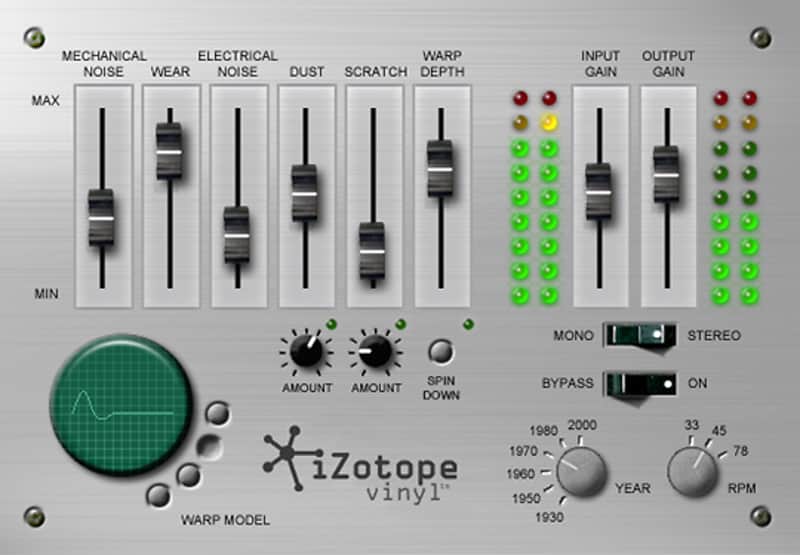
A fascinating plugin that simulates the sound of a worn vinyl record played on a vintage turntable.
How we use it:
To make digital recordings sound like classic rock sessions from the '70s.
Why it's cool:
Adjustable year and RPM recreates the tone of turntables from six different decades. The return of the ultimate lo-fi weapon.
Compatibility
Operating system requirements:
Installation Instructions
General Instructions:
What it is:
A fascinating plugin that simulates the sound of a worn vinyl record played on a vintage turntable.
How we use it:
To make digital recordings sound like classic rock sessions from the '70s.
Why it's cool:
Adjustable year and RPM recreates the tone of turntables from six different decades. The return of the ultimate lo-fi weapon.
Back just in time for its 15th anniversary, Vinyl is a plug-in that lets you simulate the dust, scratches, and warp of a worn record and the electrical and mechanical noise of the turntable it’s on. Give fresh recordings and instrument tracks the dirty, dusty feel of an earlier decade. Apply Vinyl to any source audio to make it sound as if it’s being played from a record and dial in exactly the right character to suit your tune. Plus, it’s now updated to 64-bit!
Compatibility
Operating system requirements:
- Windows: 7, 8, and 10
- Mac: OS X 10.8-10.11 (Intel only)
- Audio Unit, AAX (64-bit only) and AAX Audio Suite, RTAS and Audio Suite, VST 2, VST 3. NOTE: The Spin Down button is not available in the Audio Suite format of Vinyl.
Plug-in host compatibility:
- Pro Tools 10.3.10 - 12.4, Logic Pro X 10.2, Live 9.5, Cubase 8, REAPER 5, Digital Performer 9
Installation Instructions
General Instructions:
- We auto-detect your computer operating system, so just click the download button above.
- Find the downloaded plugin (it's in your computer's download folder, or wherever you've chosen to save it) and double click the installer.
- A plugin installer window will open. Simply go through the installation process.
- We will also send you an email with a link to re-download in case you need it.
- If Ableton Live is closed, open it and skip to #5.
- If Ableton Live is already open, go to Preferences.
- Go to Files & Folder.
- Click "Rescan plugins".
- Find the plugin in the Ableton plugins folder in the sidebar.
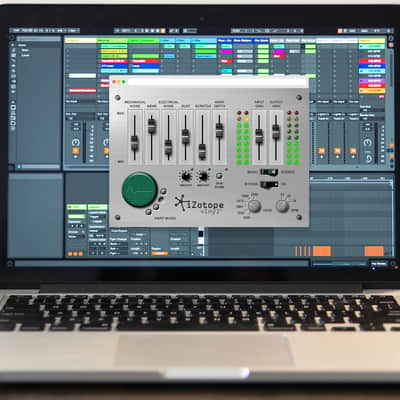
- Drag-and-drop the plugin onto your track at the bottom of the screen.
- Open Logic Pro X. Newly installed plugins should be detected automatically every time Logic is opened.
- If you've downloaded an effect or utility plugin, these can be used on an insert for any track in the mixer.
- Create a software instrument track if you downloaded a virtual instrument plugin.
- Under Default Patch, go to AU Instruments and choose the plugin you just installed.
- Open Pro Tools. Newly installed plugins should be detected automatically every time Pro Tools is opened.
- If you've downloaded an effect or utility plugin, these can be used on an insert for many types of tracks (Audio, Aux, Instrument, Master Fader...)
- If you’ve downloaded a software instrument, create a new Instrument track.
- Navigate to the Mixer and locate the newly created Instrument track.
- Select the desired instrument plugin by clicking on any of the Inserts on the Instrument track.