Waves Renaissance DeEsser
Waves Renaissance DeEsser
New Price€89.41
Incl. VAT
Instant Download
This gear has sold
See similar gear from other Reverb sellers
Listed:over a month ago
Views:433
Saves:4
Offers:1

Chicago, IL, United States
Our users rate Reverb
Your vocals, resurrected.
What it is:
State-of-the-art sibilance attenuator from Waves.
How we use it:
Remove excess 'ess' and 'shh' sounds from a track.
Why it's cool:
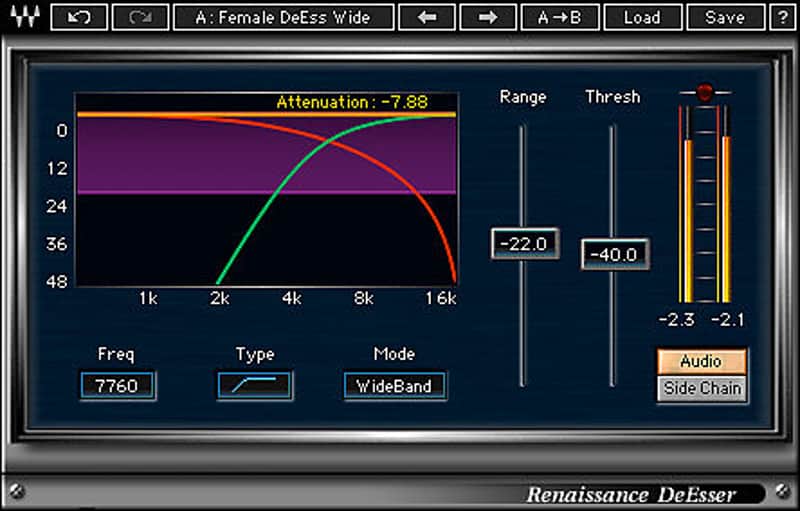
With a simplistic interface and high-quality sound, Renaissance DeEsser is sure to be your go-to for all sibilance issues. Nothing ruins a great vocal track like excess “ess” and “shh” sounds. The solution is Renaissance DeEsser, a state-of-the-art sibilance attenuator which reduces undesirable high frequencies while preserving the integrity of your source. With a variety of presets for both male and female voices, Renaissance DeEsser makes it simple to zero in on the problem spots and clean them up with accuracy and ease.
Features:
Compatibility
Mac:
CPU
CPU
Installation Instructions
What it is:
State-of-the-art sibilance attenuator from Waves.
How we use it:
Remove excess 'ess' and 'shh' sounds from a track.
Why it's cool:
With a simplistic interface and high-quality sound, Renaissance DeEsser is sure to be your go-to for all sibilance issues. Nothing ruins a great vocal track like excess “ess” and “shh” sounds. The solution is Renaissance DeEsser, a state-of-the-art sibilance attenuator which reduces undesirable high frequencies while preserving the integrity of your source. With a variety of presets for both male and female voices, Renaissance DeEsser makes it simple to zero in on the problem spots and clean them up with accuracy and ease.
Features:
- Ideal for tracking, mastering, live sound, and broadcast
- Adaptive threshold and adjustable gain reduction
- Phase compensated crossover
- Audio or side-chain monitoring
Compatibility
Mac:
CPU
- Intel Core i5 / i7 / Xeon
- 8 GB RAM
- 8 GB free disk space on the system drive
- 10.10.5 - 10.13.3
- Minimum: 1024x768
- Recommended: 1280x1024 / 1600x1024
- USB displays are not supported as the primary display.
- Mac OS Sierra 10.12.4
- VoiceOver Utility enabled
- Pro Tools 12.7
- Logic 10.3.1
CPU
- Intel Core i3 / i5 / i7 / Xeon / AMD Quad-Core
- 4 GB RAM
- 8 GB free disk space on the system drive
- Windows 7 with SP1 64 bit
- Windows 8.1 64 bit
- Windows 10 64 bit
- Minimum: 1024x768
- Recommended: 1280x1024 / 1600x1024
Installation Instructions
- Create an account: https://www.waves.com/create-account (if you have an account, skip this step)
- Register the serial number we emailed: https://www.waves.com/account/register
- Download and install Waves Central for Mac | Windows.
- If you already have Waves Central installed, skip to step 4. - Launch Waves Central.
- Windows: via the desktop shortcut or Start Menu > All Programs > Waves.
- Mac: Applications > Waves Central. - Log into Waves Central using your Waves account information.
- Click on Easy Install & Activate.
- Select the products you wish to install & activate on this computer.
- Click on the Install & Activate button.