MeldaProduction MFreeFXBundle
This listing has ended
See similar gear from other Reverb sellers

Our users rate Reverb
What it is:
A medley of effects and utilities to take your recordings to the next level.
How we use it:
From noise generators to auto-tune, there's nothing we can't do with this suite.
Why it's cool:
MeldaProduction's Universal Installer is a great way to kick-start your plugin collection and, with their level of quality, you will be sure to revisit these effects time and time again.
MFreeEffectsBundle contains a set of audio effects, which are completely free. Our commercial plugins offer many more features, but these are still extraordinary when compared to most plugins on the market. You can extend the features of these free plugins at any time by purchasing a license.
- MAutoPitch: Fast, accurate, adjustable pitch correction for vocals and mono instruments.
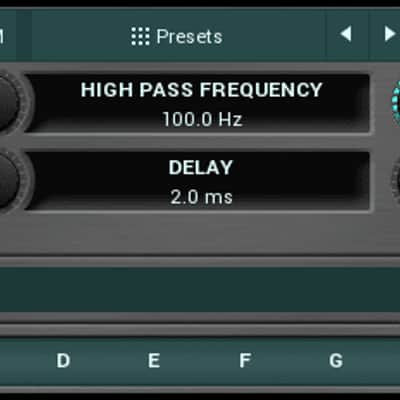
- MBandPass: High and low-pass channels equipped with dual modulators for dynamic filtering.
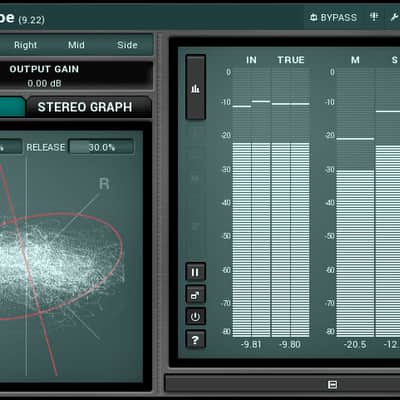
- MStereoScope: See the stereo spread of your track in real-time.
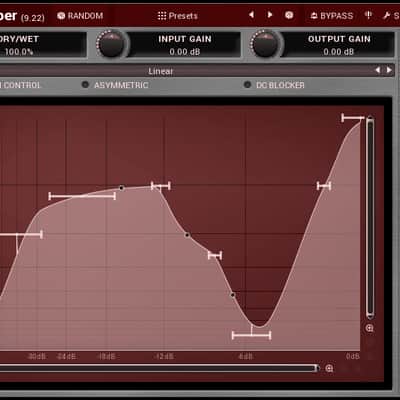
- MWaveShaper: Construct your own signature sounds with this unconventional wave-shaper.
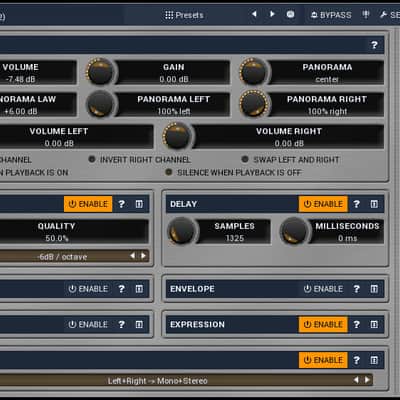
- MUtility: An engineer's Swiss Army Knife.
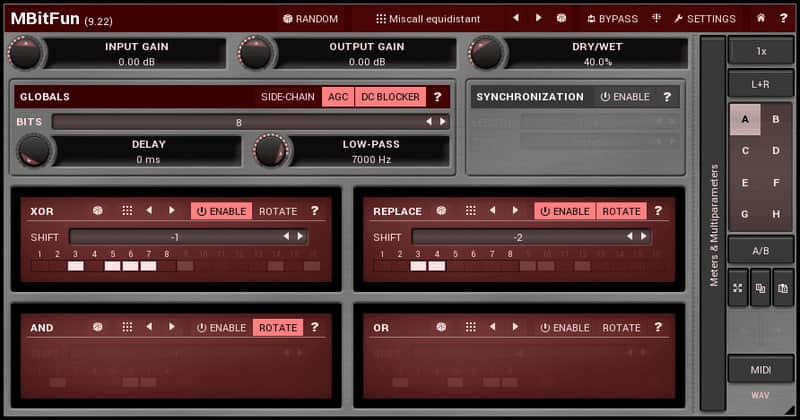
- MBitFun: Uniquely-controllable bit-crusher effect for distinct distortion tones.
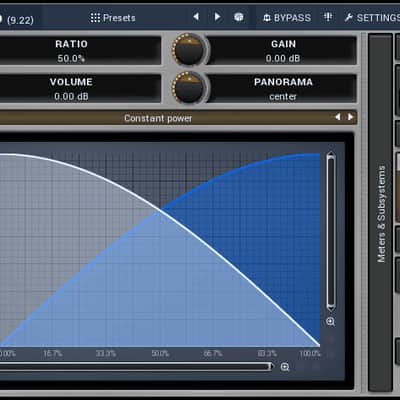
- MRatio: Mix between a track's main input and sidechain with complex modulators.
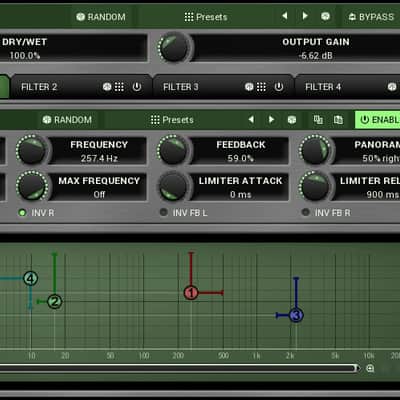
- MComb: An extremely powerful multi-comb filter with 2 super modulators.
- MStereoExpander: Frequency isolating stereo spreader with mono compatibility.
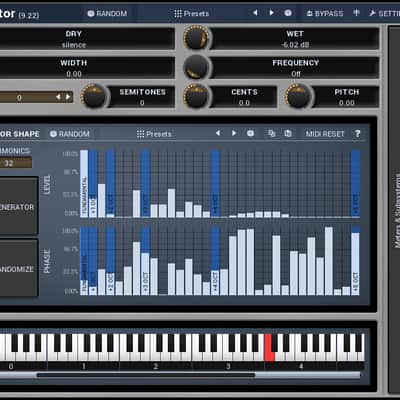
- MOscillator: Visual and fully tweakable oscillator with uses ranging from analysis to synthesis.
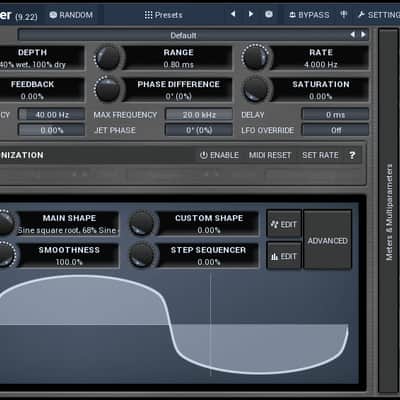
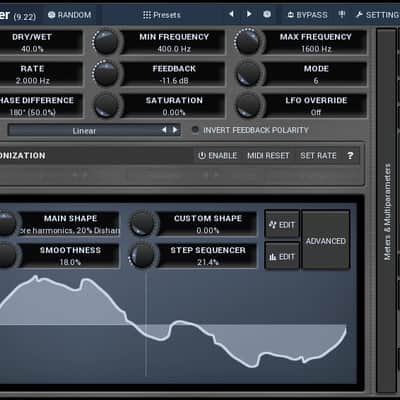
- MPhaser: Powerful phaser with smart randomization and adjustable oscillator shape.
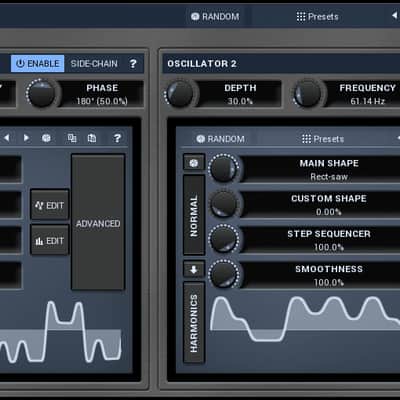
- MRingModulator: Dual visual oscillators brings powerful and unique ring modulation to your tracks.
- MVibrato: Add classic yet versatile vibrato to as many as eight channels of surround sound.
- MNoiseGenerator: Pink and white noise generator with modulators and multi-parameters.
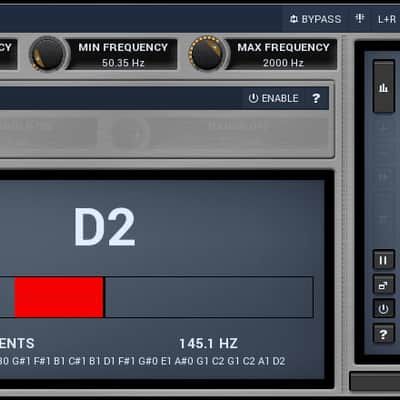
- MTuner: Fast and functional tuner plugin compatible with most instruments.
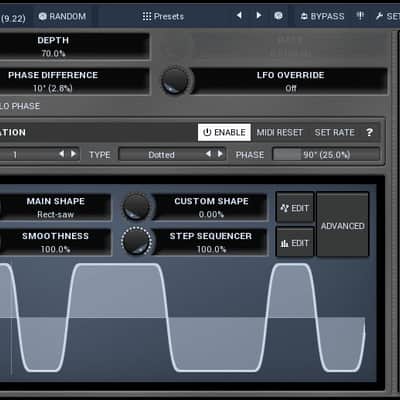
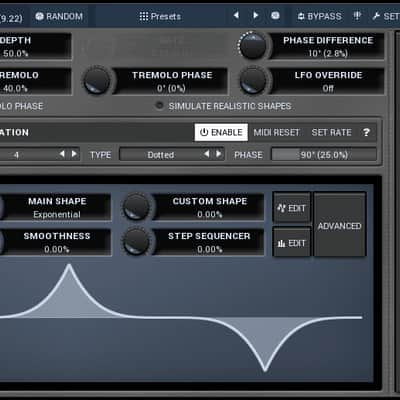
- MTremolo: Classic tremolo effect with enough parameters to venture into the obscure.
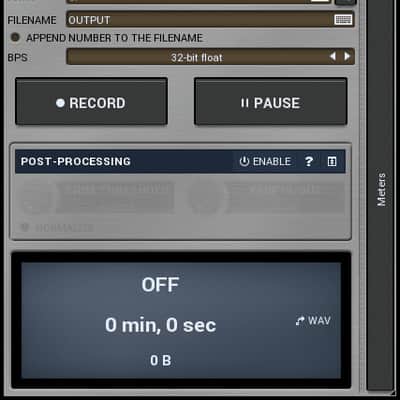
- MRecorder: Input to WAV recorder for high quality ideas or no-frills recording.
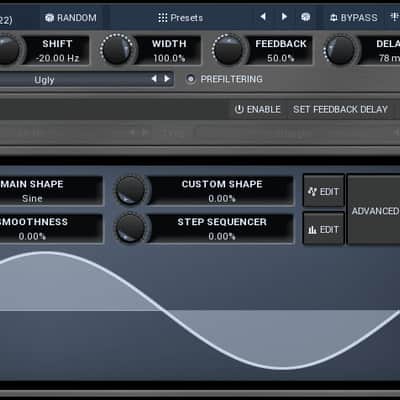
- MFreqShifter: Frequency shifting audio from a subtle stereo effect to new sonic territory.
- MChannelMatrix: Manipulate your signal path with this simple and powerful utility.
- MAutopan: Dynamic, versatile auto panning effect driven by a visual, adjustable oscillator.
- MAnalyzer: Extremely fast and reliable frequency analyzer.
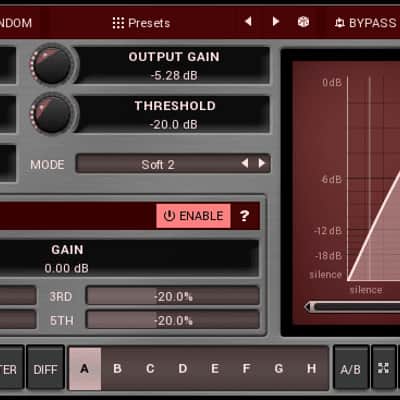
- MLimiter: Unique limiter equipped with tube-like gain and harmonics.
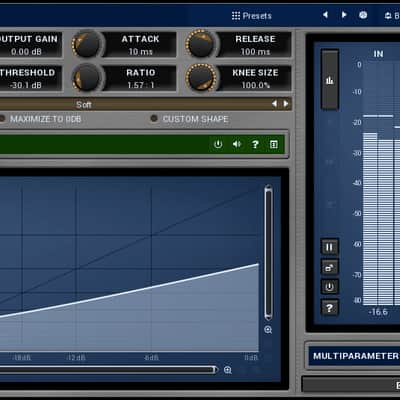
- MCompressor: Versatile compressor with a fully adjustable compression shape.
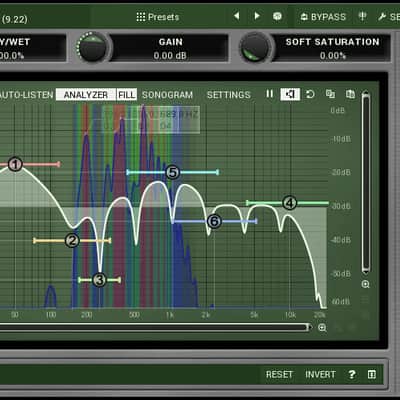
- MEqualizer: Extremely fast and useable 6-band EQ with spectrum analyzer and sonogram.
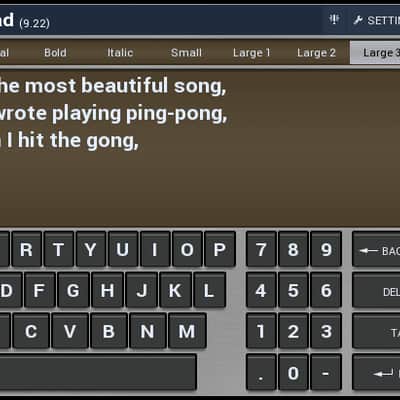
- MNotepad: Text editor with vintage recording console aesthetic.
- MFlanger: Classic to complex flange effect paired with warm tube saturation.
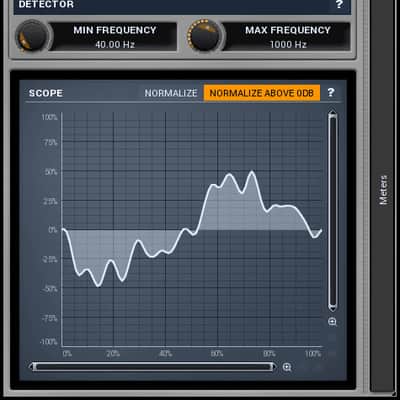
- MOscilloscope: Simple, clean, and functional pitch-detecting oscilloscope.
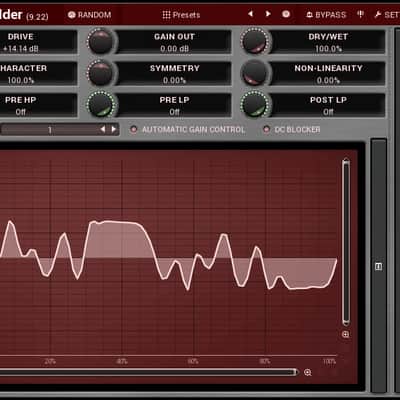
- MWaveFolder: Mild to extreme distortion with a basis in classic analog tone.
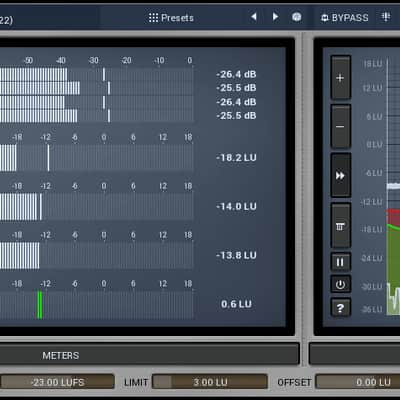
- MLoudnessAnalyzer: Standards-compliant metering with a range of loudness gauges.
Compatibility
Windows
- Windows XP, Vista, 7, 8, 10 (32-bit or 64-bit)
- VST, VST3, or AAX compatible host (32-bit or 64-bit)
- Intel/AMD processor with SSE2 support
- Mac OS X (10.6 and newer, 32-bit or 64-bit)
- VST, VST3, AU, or AAX compatible host (32-bit or 64-bit)
- Intel/AMD processor with SSE2 support
Cubase/Nuendo (Steinberg)
- VST3 is recommended. Cubase doesn't support side-chaining for VST2 plugins. Cubase 6 and newer seems much faster and more stable than previous versions.
- Windows & Mac - VST, VST3.
Wavelab (Steinberg)
- Versions prior to Wavelab 7 were buggy and are now officially unsupported, you may experience various glitches and freezing with them.
- Windows & Mac - VST, VST3.
Logic (Apple)
- Logic 9 and newer is recommended. Keep OSX and the plugins updated at all times.
- Mac - AU.
Studio One (Presonus)
- Studio one 3 and newer is recommended.
- Windows & Mac - VST, VST3, AU.
Reaper (Cockos)
- To avoid clicks after parameter changes, select all plugins in the plugin list, click right mouse button and enable 'Save minimal undo states'.
- Windows & Mac - VST, VST3.
FL Studio (ImageLine)
- Use the newest version.
- Windows - VST, VST3.
Pro Tools (Avid)
- RTAS is not and never will be supported, therefore you need Pro Tools 10 or newer. ProTools 11 or newer is highly recommended.
- Windows & Mac - AAX.
Live (Ableton)
- Plugins have usually too many parameters, so you have to enable them separately to use them in the XY grid.
- Windows & Mac - VST, AU.
Sonar (Cakewalk)
- X1 and newer is highly recommended. There were known problems when surround was enabled.
- Windows - VST, VST3.
Samplitude (Magix)
- Windows - VST.
Digital Performer (Motu)
- Resizing on OSX may be glitchy, try updating DP.
- Windows & Mac - VST, AU.
Vienna Ensemble (VSL)
- There were known issues with AU support, which should be resolved in the newest versions of VE.
- Windows & Mac - VST, AU.
Bitwig Studio (Bitwig)
- It is ESSENTIAL to disable the default sandboxing - in Bitwig plugin settings select 'As bit bridge only'. Without this the plugins cannot share resources and require more CPU and memory, multiplugins such as MMultiAnalyzer or MAutoAlign cannot work at all, and we believe it is generally less stable.
- Windows & Mac - VST.
Maschine (NI)
- Windows & Mac - VST, AU.
Audition (Adobe)
- Windows & Mac - VST, VST3.
Tracktion (Mackie)
- Windows & Mac - VST, VST3.
AudioMulch (AudioMulch)
- Windows & Mac - VST, AU.
Bidule (Plogue)
- Windows & Mac - VST, VST3, AU.
GarageBand (Apple)
- Mac - AU.
Journalist (Hindenburg)
- Mac - AU.
Installation Instructions
Following installer will install both 32-bit and 64-bit plugins and will let you choose which plugins you want to install. Since each plugin has about 100kB thanks to MeldaProduction Plugin Kernel technology, you can simply install all of them.
If you only want a few to be installed, the installer will allow you to choose the ones you need. Free plugins will work indefinitely, commercial plugins will be time limited trials. You can simply buy a licence for those you like and activate them.
General Instructions:
- We auto-detect your computer operating system, so just click the download button above.
- Find the downloaded plugin (it's in your computer's download folder, or wherever you've chosen to save it) and double click the installer.
- A plugin installer window will open. Simply go through the installation process.
- We will also send you an email with a link to re-download in case you need it.
- If Ableton Live is closed, open it and skip to #5.
- If Ableton Live is already open, go to Preferences.
- Go to Files & Folder.
- Click "Rescan plugins".
- Find the plugin in the Ableton plugins folder in the sidebar.
- Drag-and-drop the plugin onto your track at the bottom of the screen.
- Open Logic Pro X. Newly installed plugins should be detected automatically every time Logic is opened.
- If you've downloaded an effect or utility plugin, these can be used on an insert for any track in the mixer.
- Create a software instrument track if you downloaded a virtual instrument plugin.
- Under Default Patch, go to AU Instruments and choose the plugin you just installed.
- Open Pro Tools. Newly installed plugins should be detected automatically every time Pro Tools is opened.
- If you've downloaded an effect or utility plugin, these can be used on an insert for many types of tracks (Audio, Aux, Instrument, Master Fader...)
- If you’ve downloaded a software instrument, create a new Instrument track.
- Navigate to the Mixer and locate the newly created Instrument track.
- Select the desired instrument plugin by clicking on any of the Inserts on the Instrument track.
- Go to the Reverb SYNC Software and plugin Collection.
- Choose your desired plugin.
- Reverb will auto-detect your platform, so simply click the download button.
- Continue the installation process by following the prompt.
- Hover your mouse over the smart control button.
- Click Show Inspector icon.
- Click on plugins and choose your desired plugin.
| Brand | |
|---|---|
| Model |
|
| Categories |
Product safety information may be available here.